
Table of Contents
|
1. |
Introduction to the Curator Module |
|
2. |
Understanding Your Data Before You Start |
|
3. |
The Graph View — Your Curation Dashboard |
|
4. |
Applying Filters |
|
5. |
The Detail View — Working with Individual Prompts |
|
6. |
Understanding Response Statuses |
|
7. |
LLM Consensus — Your Curation Accelerator |
|
8. |
Delegating Prompts to Team Members |
|
9. |
Recommended Curation Workflows |
|
10. |
How Curated Answers Reach AI Platforms |
|
11. |
Tracking Curation Progress |
|
12. |
Frequently Asked Questions |
|
13. |
Quick Reference |
1. Introduction to the Curator Module
The Curator is the central workspace within the Bonafide platform where your team reviews, verifies, and enriches the question-and-answer (Q&A) knowledge base that Bonafide uses to inform large language models (LLMs) about your brand, properties, destinations, or services.
When AI platforms like ChatGPT, Gemini, Perplexity, Claude, or Llama respond to consumer queries about your organization, the accuracy and completeness of those responses depends on what information those models have access to. The Curator is how you take control of that information.
|
Curator Overview for Destinations
|
Curator Overview for Hotels
|
1.1 What the Curator Does
- Displays every prompt (question) that Bonafide tracks for your organization — across all properties, regions, and feature categories
- Shows the current response status for each prompt: whether an answer exists, where it came from, and whether a human has verified it
- Allows your team to edit, correct, and enrich responses directly in the platform
- Enables you to assign prompts to specific team members (called delegates) for review
- Tracks curation progress across brands, properties, regions, and feature types
- Feeds verified answers into your knowledge base, which is then shared with AI platforms
1.2 How to Access the Curator
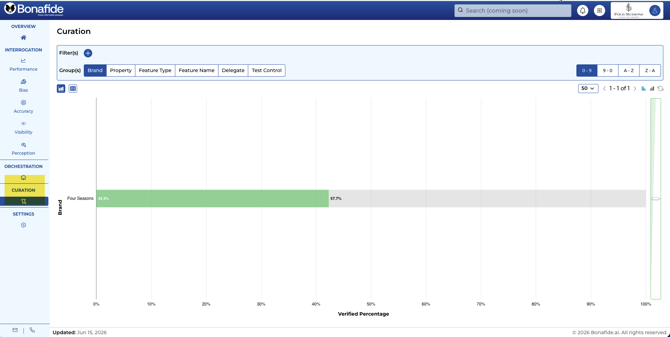
The Curator module is located in the bottom left-hand corner of the left navigation rail in the Bonafide platform. Click the Curator icon to open the module.
Left Menu > Select the Hourglass Icon (under the word “Curation”).
|
Good to Know The Curator is separate from the other Bonafide modules (Performance, Accuracy, Bias, etc.). Access to the Curator can be granted to team members independently — including delegates who only see the specific prompts assigned to them. |
2. Understanding Your Data Before You Start
Before diving into curation, it helps to understand where your data comes from and what the initial curation status means for your organization.
2.1 How Bonafide Populates Answers
Bonafide uses two primary methods to automatically populate answers for your prompts before your team begins any manual curation:
Web Crawl
Bonafide’s proprietary crawler visits your public website — similar to how AI crawlers from OpenAI or Google function — and extracts responses that correspond to tracked prompts. For example, if a page on your website states your standard check-out time, the crawler maps that to the relevant prompt and inserts it as a system of record answer.
Official Data Sources (e.g., Product Catalog, Data Sheets)
Where available, Bonafide can ingest structured data files provided by your organization — such as a product catalog, property data sheets, or other internal knowledge sources. These serve as an authoritative layer on top of the web crawl and can significantly increase your starting coverage.
|
Why This Matters Your starting curation coverage depends on how much information is publicly available on your website and how much structured data you’ve shared with Bonafide. Organizations that provide product catalogs or data sheets typically begin with significantly higher curation percentages — sometimes 30–40 percentage points higher than web crawl alone. |
2.2 The Five AI Models Bonafide Monitors
In addition to crawling your own sources, Bonafide tracks how five major large language models respond to your prompts. These models are:
- ChatGPT (OpenAI)
- Gemini (Google)
- Perplexity
- Claude (Anthropic)
- Llama (Meta)
When at least three of these five models return the same answer to a prompt, Bonafide uses that as a “consensus” response — a draft answer that can help accelerate your curation process. More on this in Section 6.
3. The Graph View — Your Curation Dashboard
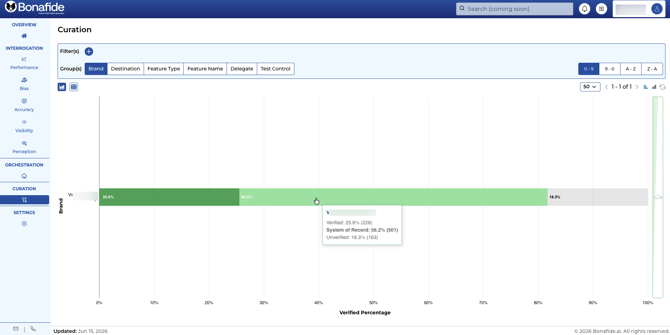
When you first open the Curator module, you are presented with the Graph View. This is a visual summary of your curation progress across your organization.
 3.1 Reading the Progress Bars
Each bar in the Graph View represents a brand, property, region, or feature type (depending on your selected grouping). The bar is divided into colored segments:
|
Color / Indicator |
Status |
What It Means |
|
Dark Green |
Verified (Human) |
A human reviewer has confirmed the response as accurate. The Q&A pair IS published to your knowledge base and shared with AI platforms. |
|
Light Green |
System of Record |
The response was auto-populated from your website or an official data source (e.g., product catalog). Published to your knowledge base. Verify to promote to dark green. |
|
Yellow / Light Blue |
Unverified — No Answer |
No answer was found in any source. A team member needs to manually enter the correct response. NOT published to AI platforms. |
|
Yellow / Orange |
Unverified — LLM Consensus |
At least 3 of 5 AI models agreed on an answer, which has been inserted as a draft response. The answer needs human confirmation before it goes live. |
Hovering over any bar reveals the exact number of prompts and the percentage in each status category for that entity.
3.2 Switching the Grouping
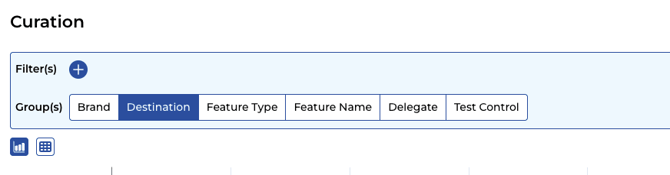
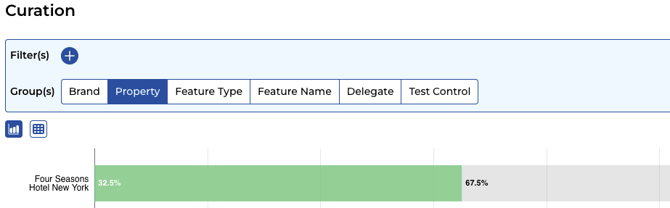
Use the grouping menu bar at the top of the Graph View to switch between different views of your data:
|
Grouping |
What You See |
|
Brand |
Progress broken down by brand (e.g., each sub-brand or label within your portfolio) |
|
Property / Location |
Progress for each individual property or location (hotel, resort, airport, destination, etc.) |
|
Feature Type |
Progress across the 21 feature types (e.g., Food & Beverage, Policy, Spa, Rooms, Location) |
|
Feature Name |
Granular breakdown by specific feature names (e.g., Pet Policy, Wi-Fi, Late Checkout) |
|
Delegate |
Shows curation progress grouped by each team member who has been assigned prompts |
|
Pro Tip If your organization spans many properties or locations, filter to a specific market or region before switching to the property grouping. This makes the view far more manageable and relevant to your role. |
3.3 Switching Between Graph View and Detail View
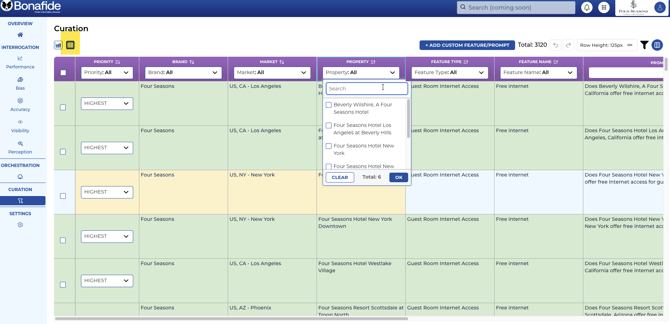
In the upper left-hand corner of the Curator module, you will see two icons:
- Graph icon: Opens the visual dashboard (Graph View)
- Grid / Detail icon: Opens the full prompt-level data table (Detail View)
These two views are complementary. Use the Graph View to assess overall progress at a glance, and the Detail View to actually review and update individual prompts.
Upper Left Corner > Click the Detail Icon (the icon resembling an Excel sheet next to the Graph icon).
.png?width=670&height=336&name=image-20251126-164613%20(1).png)
4. Applying Filters
Filters are one of the most powerful tools in the Curator. They allow you to narrow the dataset down to exactly the prompts most relevant to your role or current task.
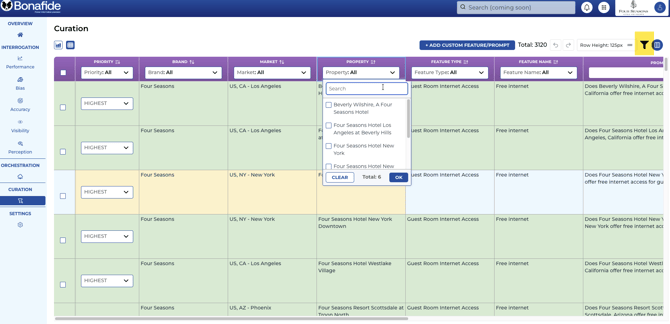
4.1 Available Filters
|
Filter |
Description |
|
Brand |
Filter to a specific brand or sub-brand within your portfolio |
|
Property / Location |
Filter to one or more individual properties, venues, or locations |
|
Feature Type |
One of 21 top-level categories (e.g., Food & Beverage, Policy, Rooms, Spa, Seasonal) |
|
Feature Name |
A granular sub-category under a feature type (e.g., ‘Pet Policy’ under Policy; ‘Late Checkout with Breakfast’ under Food & Beverage). There are approximately 925 feature names in total. |
|
Delegate Status |
Filter to prompts assigned to a specific team member, or to unassigned prompts |
|
Response Status |
Filter to Verified, System of Record, or Unverified prompts |
|
Region / Market |
Filter to prompts for locations in a specific geographic market |
4.2 Combining Filters Effectively
Filters can be stacked. A recommended workflow for efficient curation is:
- Select your market or region (if applicable)
- Select the properties or locations within that market
- Select a Feature Type relevant to a specific team (e.g., Food & Beverage for your F&B team)
- Filter by Response Status to ‘Unverified’ to focus only on prompts that need attention
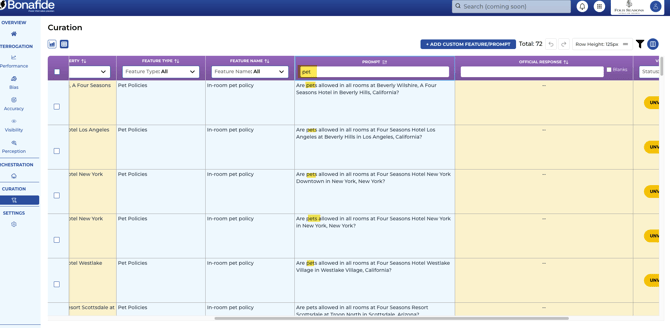
- Optionally, use keyword search within the Prompt field to narrow to a topic (e.g., “pet,” “parkng,” “late checkout”)
|
Resetting Filters Click on the funnel icon (filter reset button) to clear all active filters and return to the full prompt set. |
4.3 Keyword Search Within Fields
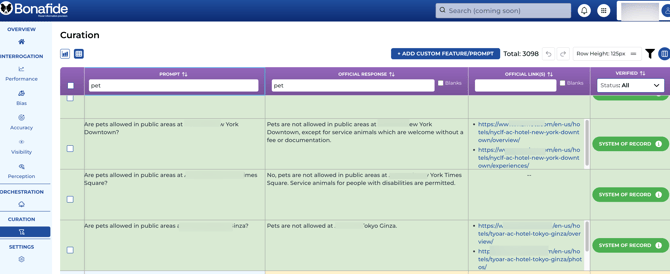
In the Detail View, you can type keywords directly into the Prompt or Official Response columns to filter the list to matching entries. For example, typing “pet” in the Prompt field will surface all prompts about pet policies across the selected properties. This is often faster than navigating through all 925 feature names.
5. The Detail View — Working with Individual Prompts
The Detail View is where you do the actual work of curation. It presents every prompt as a row in a spreadsheet-like interface, with columns for each piece of information Bonafide tracks.

Adjust Column WidthsIncrease visibility by adjusting column widths, particularly for the Official Response column, to easily review the full text. Mouse over the vertical bar between column headings > Click and drag the vertical split option to adjust width. %20(1).gif?width=670&height=297&name=2025-12-01_13-44-13%20(1)%20(1).gif)
|
5.1 Column Fields Overview
The following columns are visible by default when you open the Detail View:
|
Column |
Description |
|
Checkbox |
Select one or more prompts to apply bulk actions (change priority, bulk-delegate, etc.) |
|
Priority |
A numeric rank indicating which prompts should be curated first, based on prompt frequency and relevance. Lower number = higher priority. (Note: priority 1 is the most important.) |
|
Brand |
The brand associated with this prompt |
|
Market / Region |
The geographic market or region for this location |
|
Property / Location |
The specific property or location this prompt is about |
|
Feature Type |
The top-level category this prompt falls under (one of 21 types) |
|
Feature Name |
The specific feature sub-category (one of ~925 names) |
|
Prompt |
The actual question being tracked (e.g., “Does this property offer fax services?”) |
|
Official Response |
The current answer, color-coded by status. Fully editable by double-clicking. |
|
Delegate |
The team member assigned to verify this prompt, if any |
5.2 Additional Columns Available
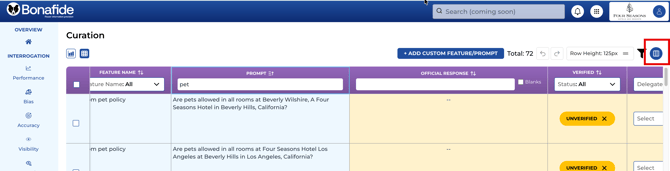
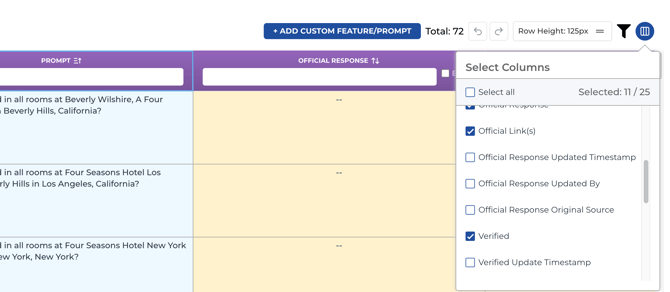
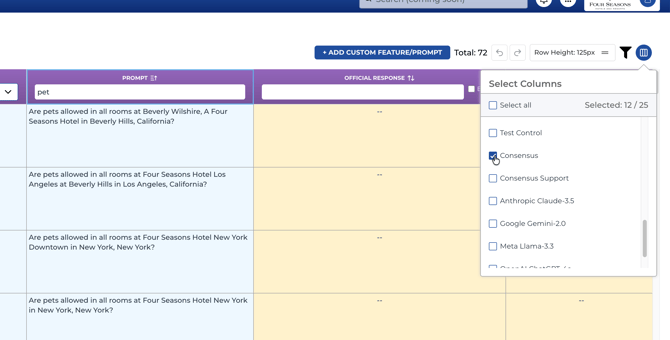
Click the blue column selector button in the upper right corner of the Detail View to expose additional fields. Two particularly valuable optional columns are:
Official Links
Displays the source URLs that Bonafide found the current answer on. This is a bidirectional field — it shows you where the answer came from, and when Bonafide distributes your knowledge base to AI platforms, those URLs are included as citation sources so models know where to find the authoritative response.
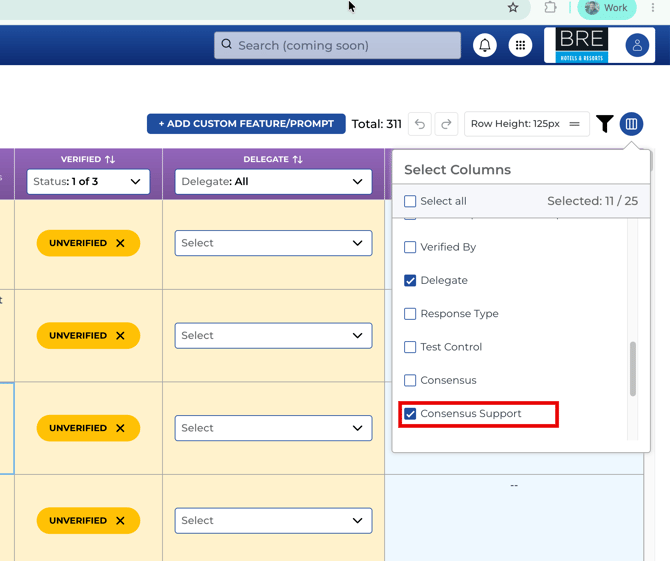
LLM Consensus Columns
When enabled, these columns show:
- Consensus: The draft answer generated from the agreement of multiple AI models
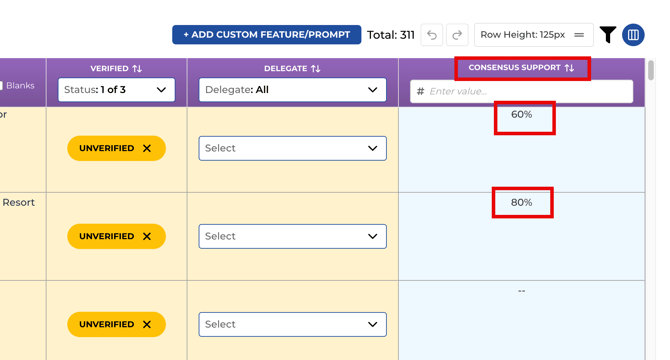
- Consensus Support %: The percentage of the five monitored models that agreed on that answer (e.g., 60% = 3 of 5 models agreed)
- Individual model responses: A column for each of the five models (ChatGPT, Gemini, Perplexity, Claude, Llama) showing their specific answer to that prompt
- Official Response Original Source: Shows whether the current official response came from the web crawl, data source, consensus, or manual entry
5.3 Editing Responses
To edit an Official Response, simply double-click the cell. You can then type directly into it to add, correct, or enrich the answer. There is no separate save button — changes are applied when you click away from the cell.
Best practices for editing responses:
- Be factual and specific. AI models respond better to clear, precise answers than vague ones.
- Include relevant context where helpful (e.g., operating hours, reservation requirements, contact methods).
- Avoid marketing language. Responses should read as informational, not promotional.
- If you don’t know the answer, leave it blank and delegate it to someone who does rather than guessing.
|
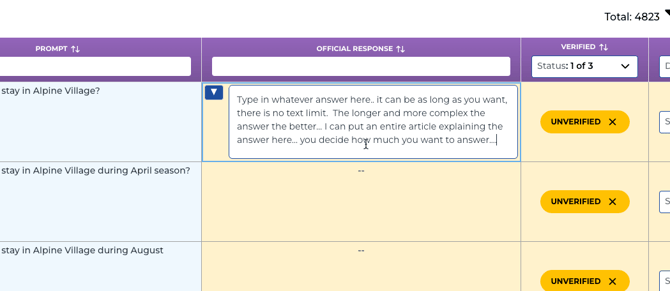
Update the Official Response Double-click into the Official Response cell to open the free text box. Enter a robust, contextual answer. You may optionally insert a Reference URL if citing a specific financial or informational sub-site (e.g., a map of ATMs or banks). Hit Enter to save the Official Response. Double-click the target cell in the Official Response column. 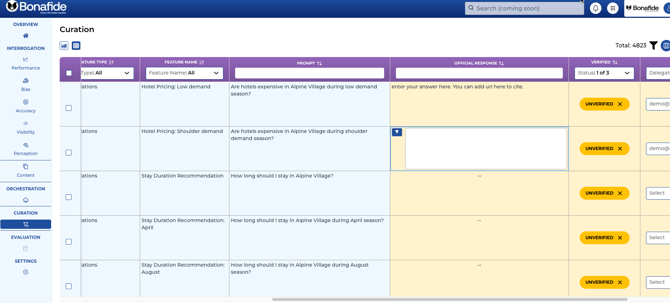 Double-click the target cell in the Official Response column.
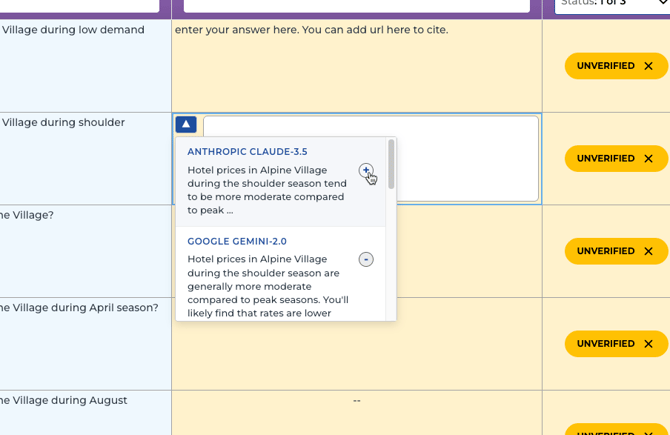
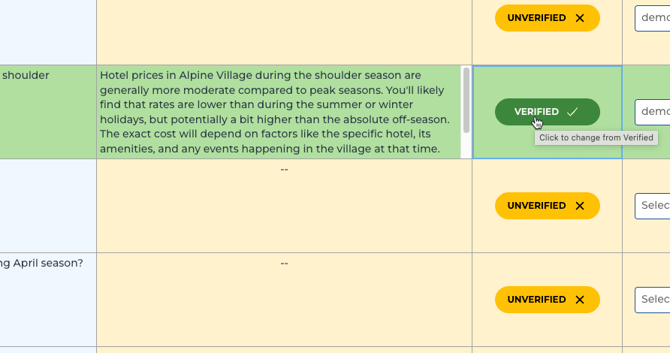
Utilize LLM ResponsesThis option can be chosen if you are not a content manager or writer. You can choose to have the LLMs assist you in the answer by simply choosing which LLM response is correct and simply adopting what they say. You can even tweak the LLM response or add to it if you like. To start with a good baseline response rather than writing from scratch, leverage responses gathered by Bonafide from various LLMs. Official Response cell (while open) > Upper Left Corner > Click the Blue Box with White Drop-down Arrow (Select Template). 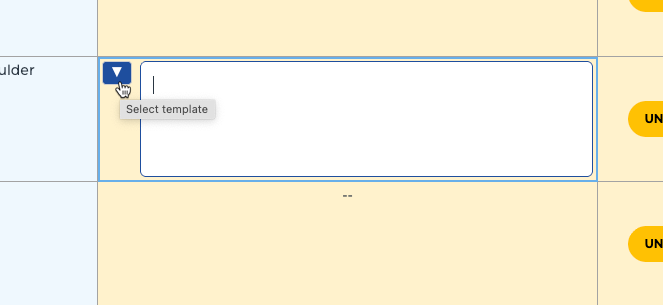
|
.png?width=670&height=560&name=image-20251216-151041%20(1).png)
5.4 Editing Official Links
To add or update the source URLs for a prompt, double-click the Official Links cell and enter the relevant URL(s). You can add multiple URLs. Official links serve two purposes:
- They show you and your team exactly where the answer was sourced
- They are included in the outbound FAQ package distributed to AI platforms, directing models to authoritative pages on your website
If the best answer for a prompt exists on a page not currently listed in the official links, add that URL. Conversely, remove any URLs that no longer point to relevant or accurate content.
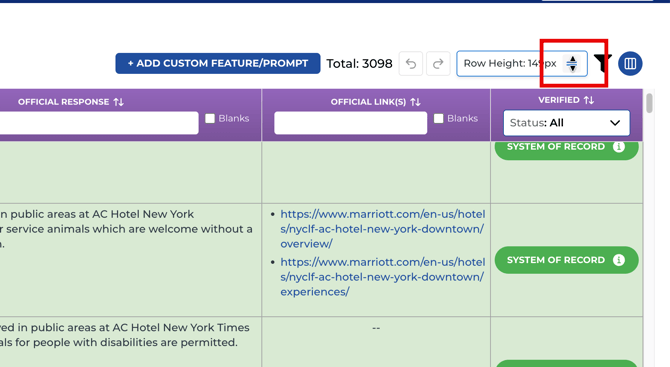
5.5 Adjusting Row Height
A row height adjustment control is available at the top of the Detail View. Click and drag it to expand rows and see full response text without having to open individual cells. This is useful when reviewing long consensus answers.
6. Understanding Response Statuses
Every prompt in the Curator has a response status, visually indicated by the color of the Official Response cell. Understanding these statuses is key to efficient curation.
|
Color / Indicator |
Status |
What It Means |
|
Dark Green |
Verified (Human)
|
A human reviewer has confirmed the response as accurate. The Q&A pair IS published to your knowledge base and shared with AI platforms. |
|
Light Green |
System of Record
|
The response was auto-populated from your website or an official data source (e.g., product catalog). Published to your knowledge base. Verify to promote to dark green. |
|
Yellow / Light Blue
|
Unverified — No Answer
|
No answer was found in any source. A team member needs to manually enter the correct response. NOT published to AI platforms or choose an AI platform's response that is verified to be accurate. |
|
Yellow / Orange
|
Unverified — LLM Consensus
|
At least 3 of 5 AI models agreed on an answer, which has been inserted as a draft response. The answer needs human confirmation before it goes live. |


6.1 System of Record
Light green cells indicate that the answer was automatically pulled from an authoritative source — either your website (via the Bonafide web crawl) or a structured data file you provided (e.g., a product catalog). These answers are already being shared with AI platforms as part of your published knowledge base.
Your job with system of record entries is to confirm they are still accurate and complete. If a system of record answer looks good, you can verify it (promoting it to dark green) or simply leave it as-is. If it’s inaccurate or outdated, edit the Official Response directly.
|
Data Source Note If a system of record entry has no Official Link listed, the answer likely came from an internal data source (like a product catalog) that does not have a public-facing URL. This is expected and normal. |
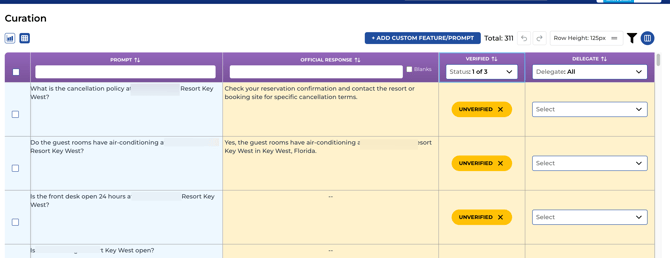
6.2 Unverified — No Answer

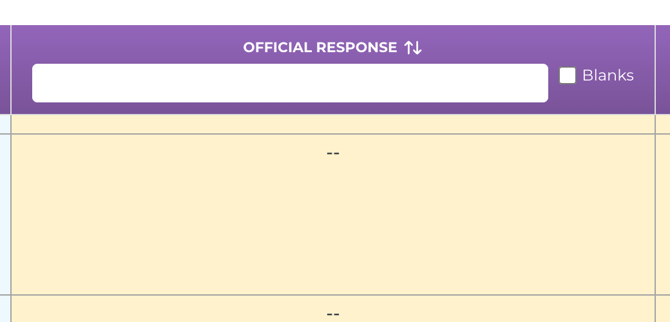
These prompts (typically shown in light blue or yellow) have no answer from any source — not from the web crawl, not from a data file, and not from AI model consensus. These require the most attention.
Action: Find the correct answer and type it directly into the Official Response cell. If you know the relevant URL, add it to the Official Links column. If you’re not the right person to answer, delegate the prompt to a colleague.
6.3 Unverified — LLM Consensus Answer
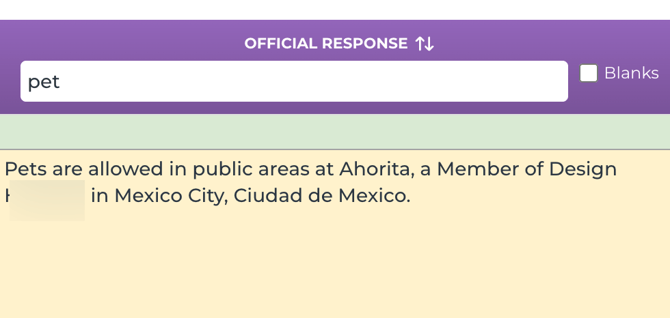
These prompts have a draft response generated from AI model consensus (at least 3 of 5 models agreed), but that response has not yet been confirmed by a human. The answer is in the Official Response cell for your review.
Action: Review the draft answer. If it’s correct, click the status indicator to verify it (it will turn dark green). If it’s incorrect or incomplete, edit the Official Response directly before verifying.
Unverified consensus answers are NOT shared with AI platforms until they are verified. This ensures your knowledge base only contains confirmed information.

7. LLM Consensus — Your Curation Accelerator
LLM Consensus is one of the most powerful tools available to speed up your curation process. Here’s how it works and how to use it effectively.
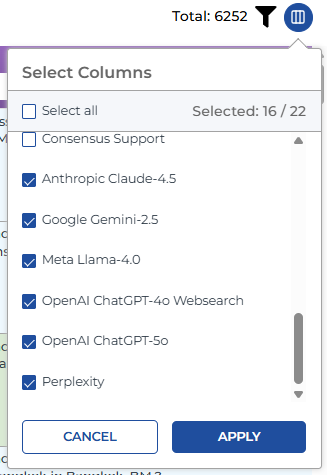
Enable LLM Comparison Columns to View them Side by Side
Enable columns to view responses from multiple LLMs side-by-side with your Official Response for easy comparison.
Upper Right Corner > Click the Blue Column Selector Icon > Scroll to the bottom > Select desired LLMs (e.g., Gemini, Perplexity, Chat GPT) > Click Apply.
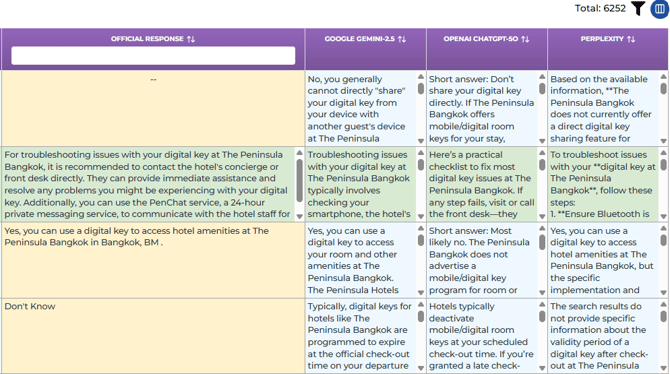
Review and Adopt LLM Responses
The scroll bar expands, allowing you to scroll right to see the LLM responses side-by-side. Review the different responses from each LLM.
Scroll Right to view LLM columns. You may copy text from an LLM column, edit it externally (e.g., in a notepad), and manually paste it back into the Official Response cell.
7.1 How Consensus Works
Bonafide continuously queries the five major AI models (ChatGPT, Gemini, Perplexity, Claude, and Llama) with every tracked prompt. When three or more models return the same answer, Bonafide:
- Calculates a Consensus Support % (e.g., 60% = 3 of 5 agreed; 80% = 4 of 5 agreed; 100% = all 5 agreed)
- Inserts that consensus answer as the Official Response for the prompt
- Flags it as “Unverified” — a draft that needs human confirmation
7.2 Interpreting the Consensus Support Percentage
The Consensus Support % is a strong signal of answer reliability:
|
Consensus Support % |
What It Means |
|
60% (3 of 5 models) |
Reasonable confidence. Around 80%+ likely correct if a human reviews it. A good candidate for spot-checking. |
|
80% (4 of 5 models) |
High confidence. Around 90%+ likely correct. Strong candidate for bulk verification. |
|
100% (5 of 5 models) |
Very high confidence. ~95%+ likely correct. Many teams choose to bulk-accept at this threshold. |
Note: These are confidence estimates based on Bonafide’s experience across multiple customers. For high-stakes information (pricing, safety policies, legal requirements), always verify manually regardless of consensus support.
7.3 How to Use Consensus to Speed Up Curation
There are two approaches to leveraging consensus for bulk curation:
Manual Review with Consensus as a Guide
Enable the Consensus and Consensus Support columns using the column selector. Filter to unverified prompts, then scroll through the Official Response column. Where you see high consensus support and the answer looks correct, click the status indicator to verify individually.
Bulk Auto-Verification by Threshold
If you have reviewed a representative sample and are confident in the quality of consensus answers at a given threshold, contact your Bonafide account team and request a bulk auto-verification. You can specify:
- The consensus threshold (e.g., “Verify everything at 80% and above”)
- The scope (e.g., specific markets, specific properties, specific feature types)
Bonafide will then filter to matching prompts and auto-verify them on your behalf. This can address hundreds or thousands of prompts in one pass.
|
Best Practice Start by spot-checking 10–20 consensus answers at your chosen threshold (e.g., 80%). If accuracy looks good, proceed with bulk auto-verification for that scope. You can always revisit individual answers later. |
7.4 Reviewing and Reverting Consensus Answers
After bulk verification, you can always go back and review:
- Enable the “Official Response Original Source” column from the column selector
- Type “consensus” in the filter for that column to isolate prompts verified via consensus
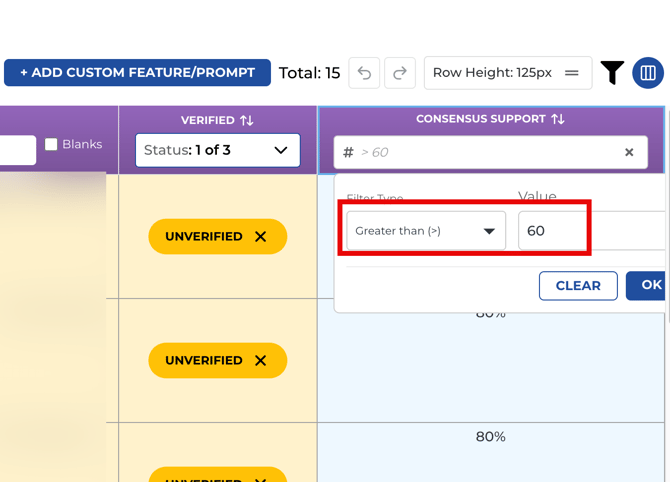
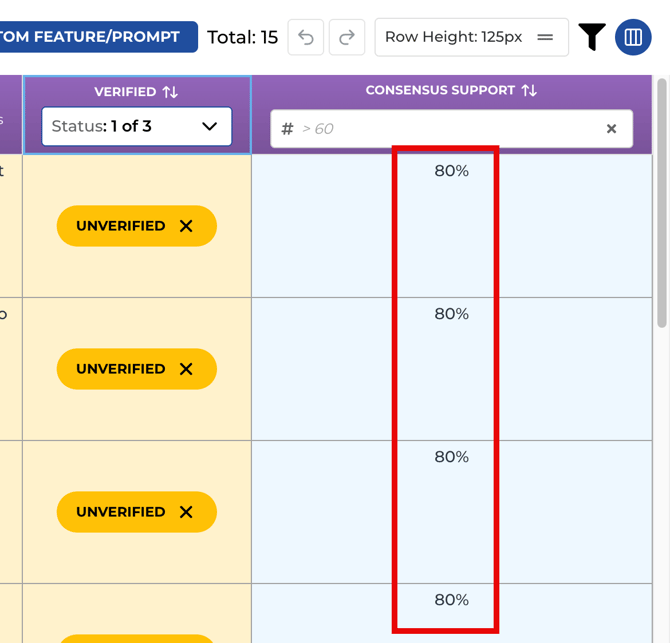
- Add a Consensus Support filter (e.g., greater than 79%) to further refine
- Review individual answers and update the Official Response if needed
- Mark an answer as “Unverified” to reopen it for re-review
8. Delegating Prompts to Team Members
Curation is most effective when the right questions reach the right people. The delegation system allows you to assign specific prompts to team members who are best positioned to verify or answer them.
8.1 How Delegation Works
When you delegate a prompt to someone:
- They receive an email invitation to join the Bonafide platform
- When they log in, they see only the Curator module — not any other Bonafide modules
- Within the Curator, they only see the specific prompts assigned to them
- They can edit the Official Response and Official Links for their assigned prompts, and mark them as verified
This keeps your internal experts focused without requiring them to navigate the full platform or see data outside their scope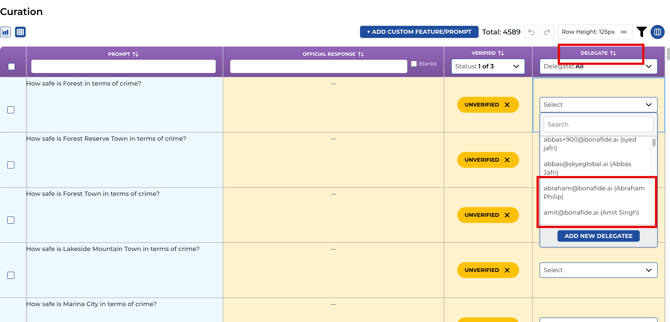
8.2 Delegating Individual Prompts
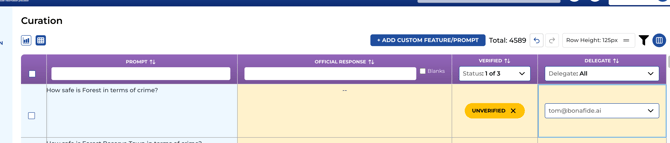
To assign a single prompt to a team member, click the Delegate dropdown in the rightmost column of that row and select the person’s name from the list.
8.3 Bulk Delegation
To assign multiple prompts at once:
- Use the checkbox in the left column to select the prompts you want to assign (you can select all matching prompts with the header checkbox)
- An action toolbar appears at the top of the Detail View once at least one row is selected
- Click the Delegate option in the toolbar
- Select the team member from the dropdown
- Click the Apply/Update button to save — all selected prompts will be assigned to that person in one step
This is especially useful for feature-type-based delegation. For example, select all “Food & Beverage” prompts for a given market and assign them all to your F&B manager at once.√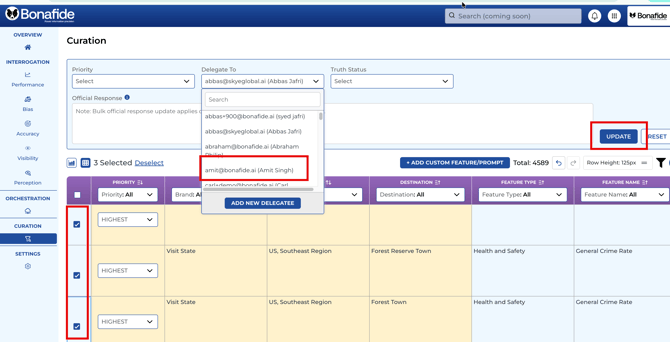
8.4 Adding a New Delegate
Related Article; How to Add Delegates as a User in Curator
If the team member you want to delegate to is not yet in the system:
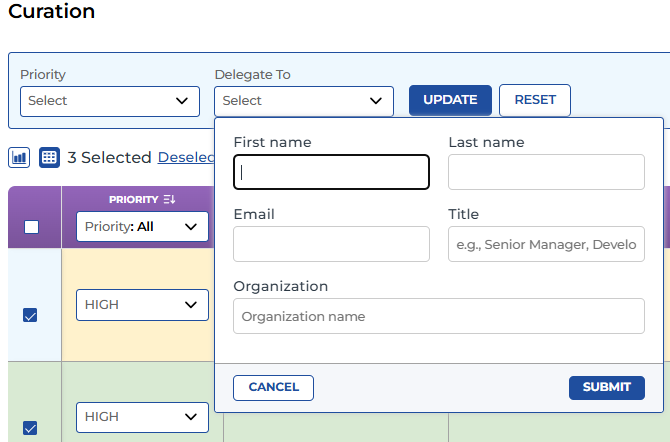
- In the Delegate dropdown, select “Add New Delegate”
- Enter the person’s email address (must be a valid address within your organization’s domain)
- Submit the form — they will be added to the delegate list and will receive an email invitation
- Once added, their name appears in the delegate dropdown for all users with access to the platform
Select or Add a Delegate
Choose an existing delegate or select Add new delegate. New delegates require a first name, last name, and email (title and organization are optional).
Delegate to Dropdown > Select name (e.g., "Delegate Test User") or Add new delegate.
|
Finalize Delegation Select the Update button. This action systematically generates an email, creates a login for the delegate (if new), and sets up their restricted view containing only the assigned prompts. Select the Update button. 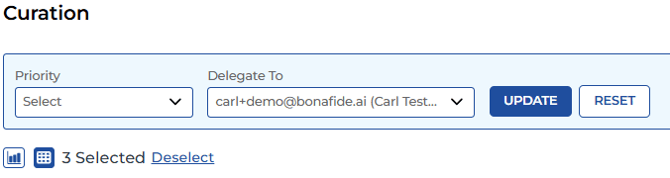
|
|
Tip: Pre-load Your Delegates If you know in advance which team members will be handling curation for specific areas, add them as delegates before you begin. This way their names are already in the dropdown and anyone on your team can assign prompts to them immediately. |
8.5 Tracking Delegate Progress
In the Graph View, switch the grouping to “Delegate” to see a progress bar for each team member. This shows how many of their assigned prompts have been addressed (verified) versus still pending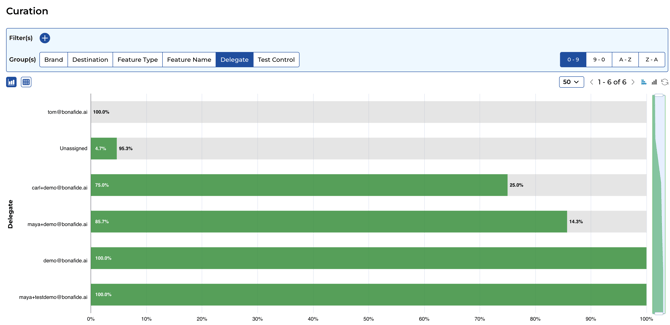
9. Recommended Curation Workflows
The following workflows are recommended starting points. Your team can adapt them based on your organization’s structure, the number of properties or locations, and the roles of people involved.
9.1 Quick-Start: High-Impact Curation in Under an Hour
This workflow is designed to address the most important gaps quickly.
- Open the Curator and switch to Detail View
- Apply a market/region filter to scope down to a manageable set of locations
- Apply a Feature Type filter (e.g., Food & Beverage, Policy, Rooms) to focus on a specific domain
- Filter by Response Status: “Unverified”
- Enable the Consensus and Consensus Support columns
- Review the consensus answers. For those with 80%+ support that look correct, click to verify
- For prompts with no consensus answer, type the correct answer into the Official Response cell
- Delegate any prompts you cannot answer to the appropriate team member
9.2 Team-Based Delegation by Feature Type
This workflow is ideal for larger organizations with specialized teams.
- Identify which team members are responsible for each domain (e.g., F&B manager, facilities, sales, property operations)
- Add them as delegates in the Curator (see Section 8.4)
- For each domain, apply the corresponding Feature Type filter and select all matching prompts
- Bulk-assign those prompts to the relevant delegate
- Ask each delegate to log in, review their assigned questions, fill in answers, and verify
- Monitor progress via the Graph View under the Delegate grouping
9.3 Consensus-Based Bulk Verification
This workflow is ideal when speed is a priority and you have confidence in AI model accuracy for your domain.
- Spot-check a sample of 10–20 consensus answers at your chosen threshold (e.g., 80%)
- If accuracy is acceptable, contact your Bonafide account team
- Specify your threshold and scope (e.g., “All unverified prompts for [Market] at 80% consensus support and above”)
- Bonafide will run the bulk auto-verification on your behalf
- Review the results afterward using the “Original Source = Consensus” filter
- Manually correct any answers that need adjustment
9.4 Ongoing Maintenance Curation
Once initial curation is complete, regular maintenance ensures your knowledge base stays accurate as your offerings change.
- After launching new services, packages, or amenities: filter by the relevant Feature Type and update or add responses
- After policy changes: use keyword search (e.g., “cancellation,” “pet,” “check-out”) to find affected prompts quickly
- After seasonal changes: filter by the Seasonal feature type and update responses
- If an answer is found to be incorrect: double-click the Official Response cell, correct it, and re-verify
10. How Curated Answers Reach AI Platforms
Understanding what happens after you verify an answer helps clarify why curation matters.
10.1 Your Knowledge Base (Subdomain)
Bonafide maintains a dedicated subdomain (e.g., a structured knowledge base hosted on your domain) where all verified Q&A pairs are published. This file is formatted in ways that AI crawlers can readily index — including Markdown and HTML formats.
Any prompt that has a System of Record or Verified status is included in this published knowledge base. Unverified prompts are held back until a human approves them.
Changes you make in the Curator are written to this knowledge base automatically. There is no separate publish step.
10.2 What AI Platforms Receive
Each Q&A pair published to your knowledge base contains:
- The prompt (question)
- The official response (answer)
- Official links (source URLs, when available)
AI platforms that crawl your subdomain ingest this structured information and use it to inform future responses about your organization. While Bonafide cannot control when or how frequently each AI platform crawls, the knowledge base is made available in a format optimized for AI ingestion.
|
Important Only verified and system-of-record answers are shared with AI platforms. Unverified answers — even those with strong LLM consensus — remain in a controlled environment until you approve them. This protects your organization from inaccurate information being distributed. |
10.3 The Goal: Authoritative Information
The purpose of curation is to make your knowledge base the most accurate and complete source of information about your organization. When AI platforms consult that source, they surface better, more reliable answers to consumers. The more prompts you verify, the more control you have over how your brand is represented in AI-generated responses.
11. Tracking Curation Progress
Bonafide provides several ways to monitor how your curation effort is advancing over time.
11.1 Graph View Progress Bars
The primary progress tracking tool is the Graph View. As prompts are verified, the dark green bar segment grows. You can monitor progress:
- By brand or label (to see portfolio-level progress)
- By property or location (to see how individual locations are doing)
- By feature type (to see which topic areas have the most gaps)
- By delegate (to see how individual team members are progressing with their assignments)
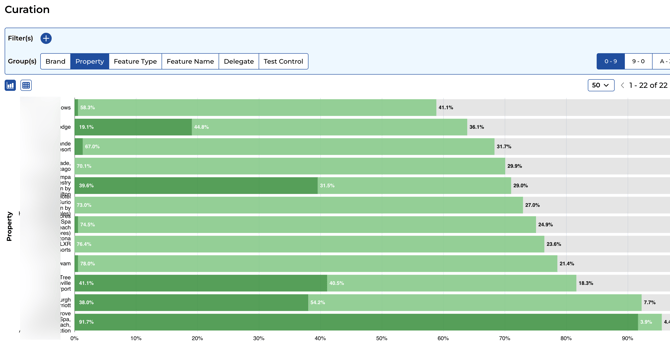 11.2 Prompt Count Indicators
In the upper right corner of the Detail View, a counter shows the total number of prompts matching your current filters (e.g., “2,600 prompts”). As you apply filters, this number updates to reflect the narrowed scope. This helps you understand the size of each curation task before you start.
11.3 Pagination
The Detail View displays prompts in pages of 50. Use the pagination controls in the upper right corner to navigate between pages. Page navigation is available in both the Graph View (for properties) and the Detail View.
12. Frequently Asked Questions
Can I export the prompt data to a spreadsheet?
Exporting the full prompt set to a CSV or Excel file is possible but should be approached carefully. Bonafide does not currently support re-importing edited spreadsheets back into the Curator — attempting to do so can cause data issues. The recommended workflow is always to make edits directly within the Curator interface. Contact your Bonafide account team if you have a specific export need.
Can I grant many different team members access to the platform?
Yes. The delegation system is designed for exactly this. When you delegate prompts to a team member, they receive an email invitation and gain access to only the Curator module, and only for their assigned questions. There is no limit on the number of delegates you can add. This makes it practical to involve property-level staff, department managers, or regional leads in the curation process.
What happens if I verify an answer and later find out it’s wrong?
You can edit the Official Response at any time by double-clicking the cell and updating the text. You can also change the status from Verified back to Unverified by clicking the status indicator. The corrected answer will be updated in your knowledge base automatically.
Why does a system of record entry have no official link listed?
If a system of record answer has no official link, it most likely came from an internal data source or additional system of records other than your website (such as a product catalog pdf marketing materials or property data sheet) that does not have a public-facing URL. This is expected behavior. You can add a relevant public URL to the official links field if one exists.
What’s the difference between ‘Unverified’ and ‘System of Record’?
System of Record answers were auto-populated from your website or an official data source. They are already being shared with AI platforms because they are grounded in your own published content. Unverified answers either came from AI consensus or have no answer at all — neither case has been human-confirmed, so they are held back from distribution until verified.
How long does curation typically take?
The time required depends on the scale of your property portfolio and the initial coverage rate. In general, a single team member can review and act on 15–30 unverified prompts in about 10–20 minutes when using LLM consensus as a guide. For large-scale operations, the bulk auto-verification approach (see Section 7.3) can address hundreds of prompts in a single request to your Bonafide account team.
Are unverified prompts ever visible to consumers or AI platforms?
No. Unverified prompts — including those with LLM consensus answers — are held in a controlled environment and are not published to your knowledge base or shared with AI platforms until a human verifies them.
Can the AI consensus threshold be customized?
Yes. You can choose your own threshold — 60%, 80%, 100%, or any value in between. Different teams use different thresholds based on their tolerance for risk and the nature of the content. You can also apply different thresholds for different property sets, markets, or feature types. Discuss your preferred approach with your Bonafide account team.
13. Quick Reference
Color Codes at a Glance
|
Color / Indicator |
Status |
What It Means |
|
Dark Green |
Verified (Human) |
A human reviewer has confirmed the response as accurate. The Q&A pair IS published to your knowledge base and shared with AI platforms. |
|
Light Green |
System of Record |
The response was auto-populated from your website or an official data source (e.g., product catalog). Published to your knowledge base. Verify to promote to dark green. |
|
Yellow / Light Blue |
Unverified — No Answer |
No answer was found in any source. A team member needs to manually enter the correct response. NOT published to AI platforms. |
|
Yellow / Orange |
Unverified — LLM Consensus |
At least 3 of 5 AI models agreed on an answer, which has been inserted as a draft response. The answer needs human confirmation before it goes live. |
Key Actions Cheat Sheet
|
To Do This... |
Do This in the Curator |
|
See overall curation progress |
Open Curator → Graph View → select grouping |
|
Review individual prompts |
Open Curator → Detail View |
|
Filter to a specific region or location |
Apply the Market/Region and Property filters |
|
Focus on prompts that need attention |
Filter Response Status to ‘Unverified’ |
|
Search for a topic (e.g., pet policy) |
Type the keyword into the Prompt column filter |
|
Edit an answer |
Double-click the Official Response cell |
|
Add or update source URLs |
Enable Official Links column; double-click the cell |
|
Verify a single prompt |
Click the status indicator on that row |
|
Assign a prompt to a team member |
Click the Delegate dropdown on that row |
|
Bulk-assign multiple prompts |
Check multiple rows → use the action toolbar to delegate |
|
Add a new delegate |
Delegate dropdown → Add New Delegate → enter email |
|
See LLM model responses |
Enable Claude, Gemini, ChatGPT, Perplexity, Llama columns |
|
Track team member progress |
Graph View → switch grouping to Delegate |
|
Reset all filters |
Click the funnel/reset icon |
|
Request bulk auto-verification |
Contact your Bonafide account team with threshold + scope |
Need Help?
For questions about the Curator tool, your knowledge base configuration, or bulk curation requests, contact your Bonafide Customer Success representative or email support@bonafide.ai