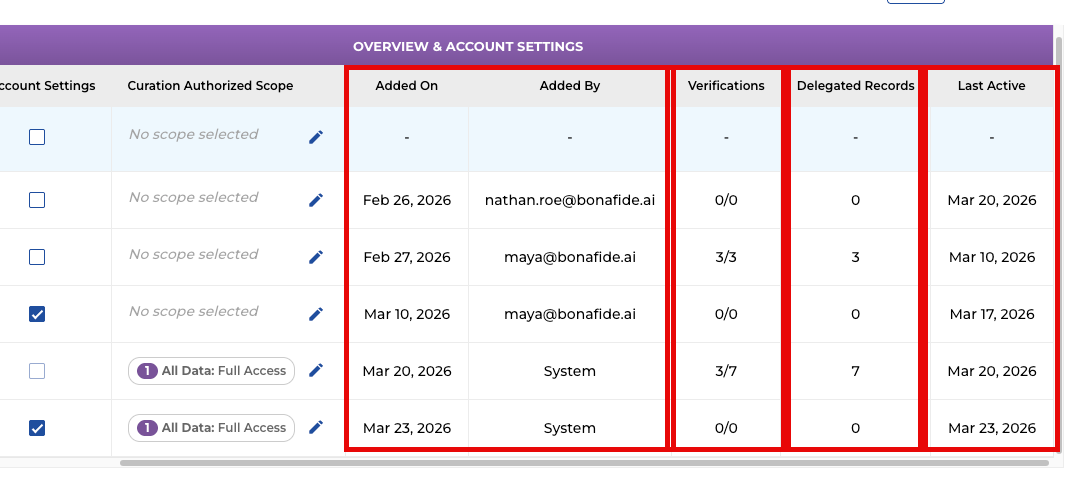
The User Management module, located within the Settings section of the platform, is your central hub for controlling team access and maintaining account security. This guide provides a step-by-step walkthrough of managing users, from initial setup to assigning specific permissions.
Step 1: Accessing the User Management Module
- Log in to your account and navigate to the Settings icon on the main sidebar.
- Select User Management from the sub-menu to open the user overview dashboard.
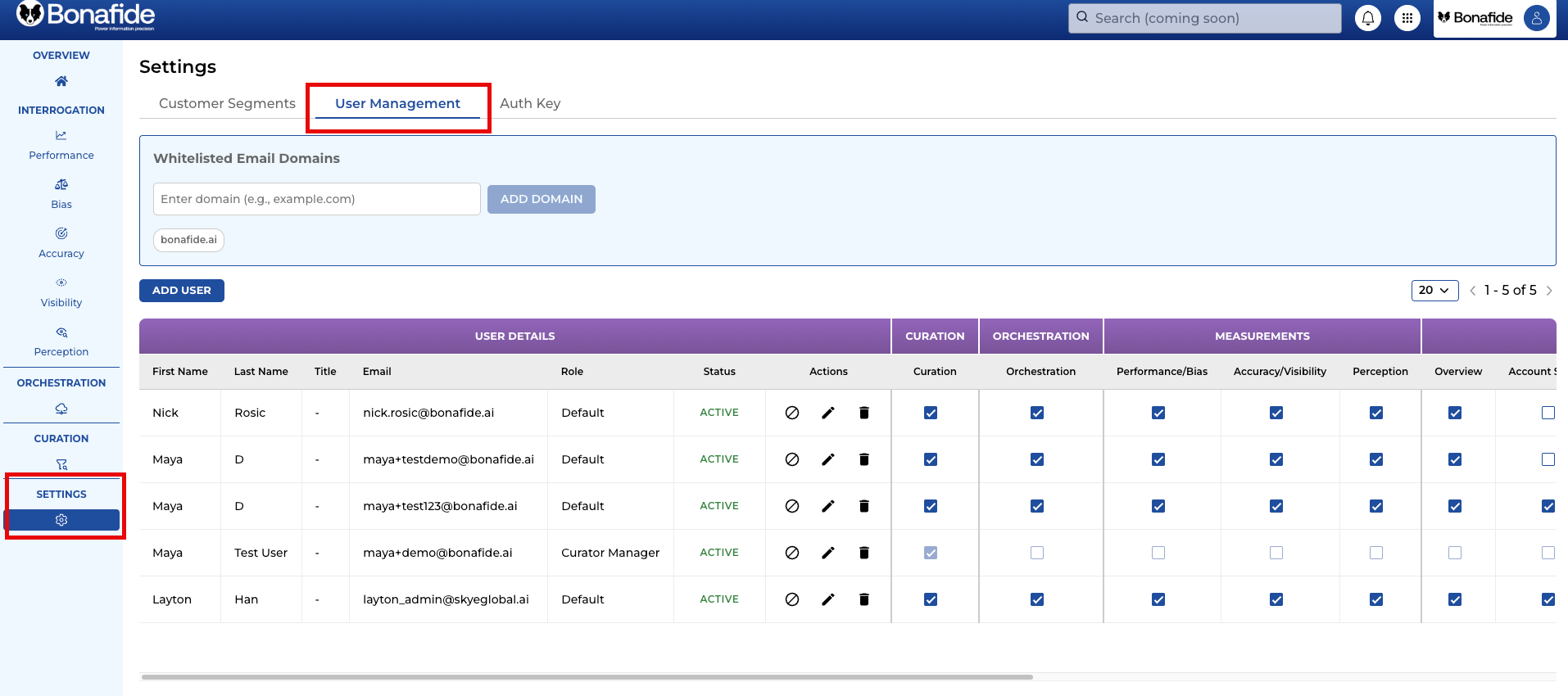
Step 2: Whitelisting Email Domain
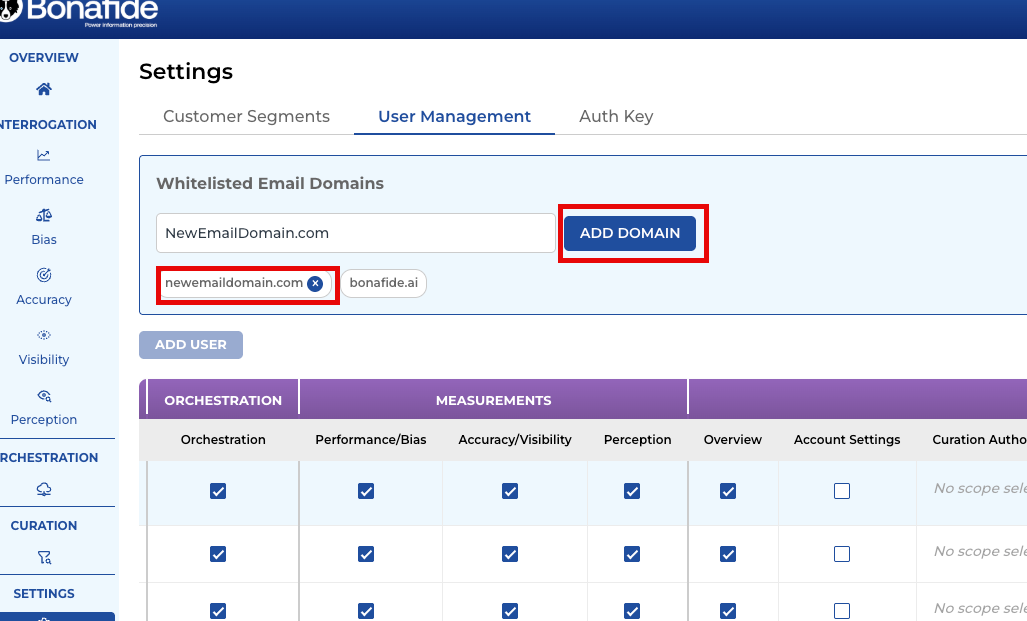
Users have greater control over their domain configurations within the User Management settings.
Before adding users, make sure the users email domain is added or appears in the whitelist section. If the email domain of the user you are about to add is not whitelisted, the system will not allow you to add that user.
- Feature: Users have the ability to add or delete a whitelisted email domain.
- Deletion of Email Domains from Whitelist: Deleting email domain is easy by simply clicking on the "X" beside the domain you want to delete. Note that the primary email domain is strictly excluded from deletion. This means the original email domain during the Bonafide onboarding or initialization of the data cannot be deleted by design
Step 3: Adding a New User
To grant a new team member access to the platform:
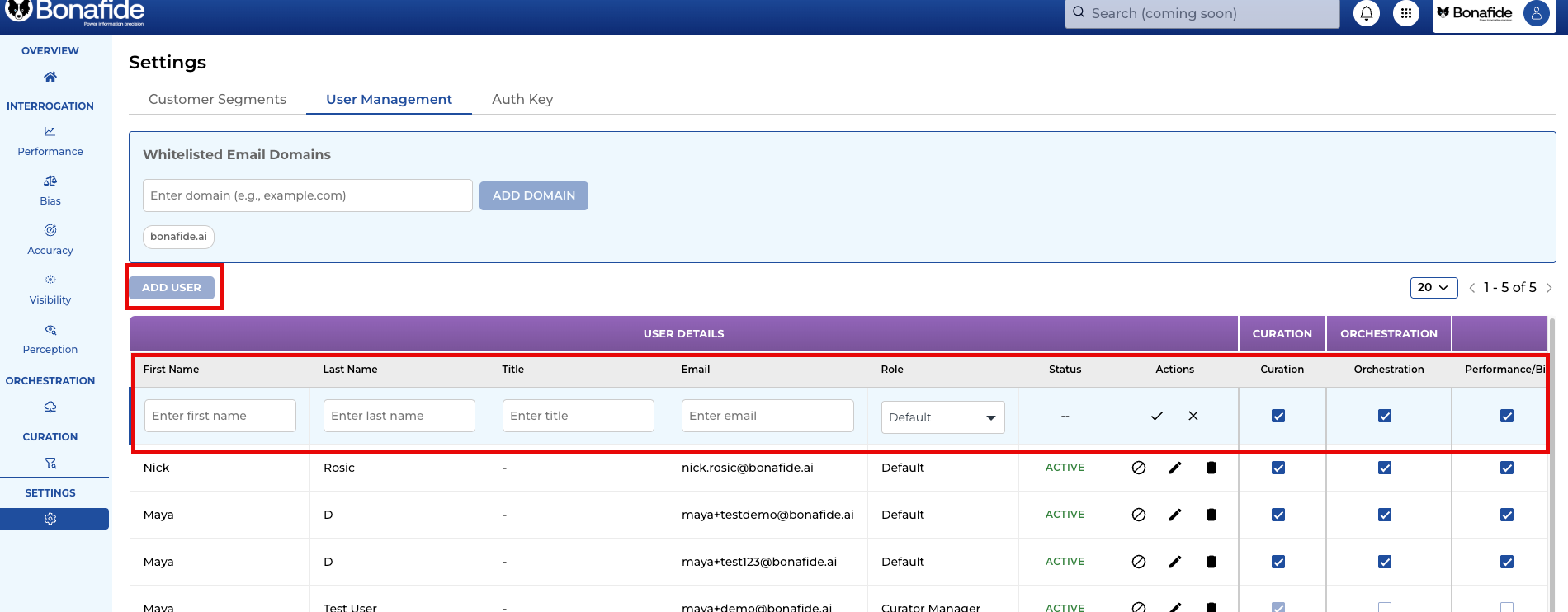
- Click the Add User button.
- Enter the required details: First Name, Last Name, Title, and Email Address.
- Security Tip: Ensure the email address matches a Whitelisted Email Domain (e.g., @YourCompanyDomain.com). The system will block attempts to add users from external or unverified domains to prevent unauthorized access.
Step 3: Assigning Roles and Permissions
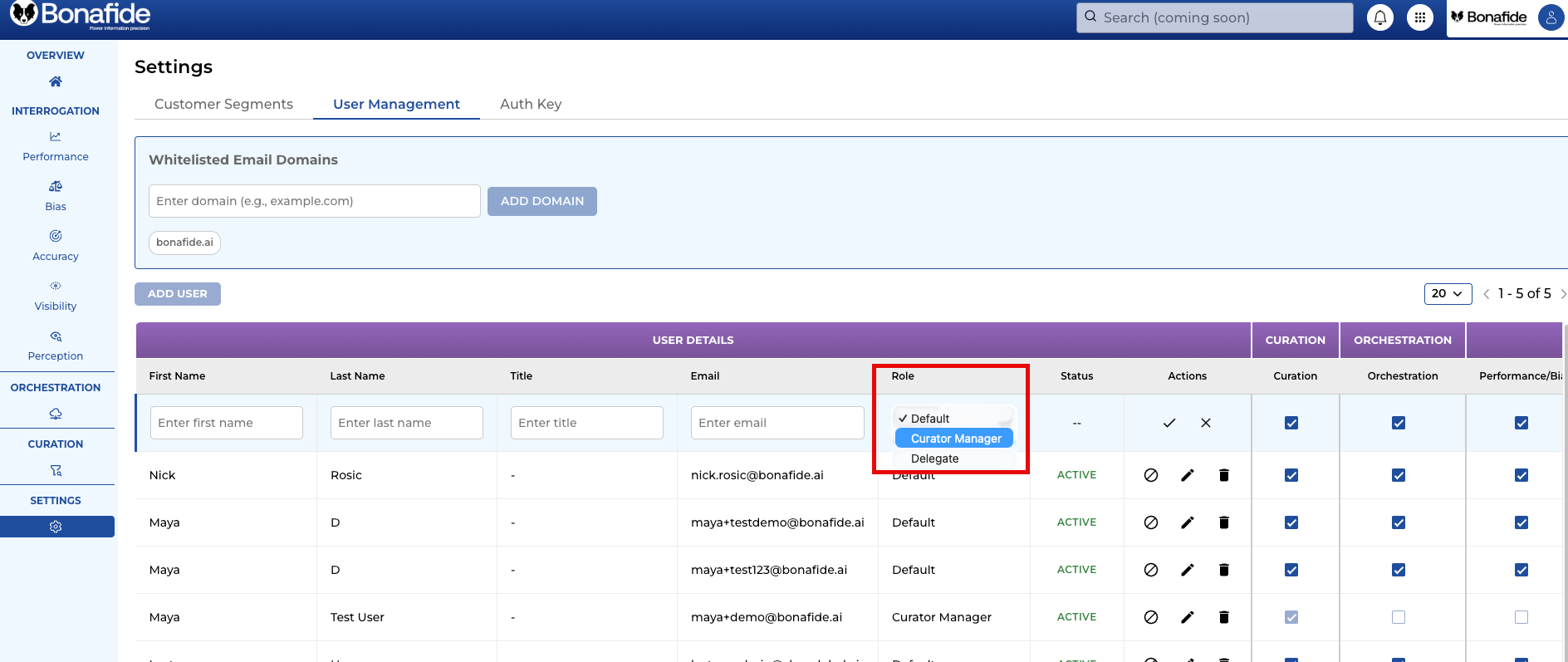
Before saving, you must define what the user can see and do by selecting a Role:
- Default (Admin): Grants full administrative access to all platform modules, including Curator, Orchestration, Measurements, Performance, Bias, Accuracy, Perception, and User Management.
- Curator Manager: A specialized role that automatically limits the user’s visibility to the Curator module only.
- Delegate: This role adds the individual to the delegation dropdown list within the Curator module, allowing managers to assign them specific questions for verification.
Step 4: Customizing Access (Optional)
Regardless of the base role selected, (Default) administrators can manually override permissions:
- Review the list of available modules (e.g., Performance, Accuracy).
- Toggle the checkbox next to each module to grant or revoke access for that specific user.
- This is useful for creating hybrid roles, such as a user who needs access to both Curator and Performance metrics but not User Management.

Step 5: Finalizing the Invitation
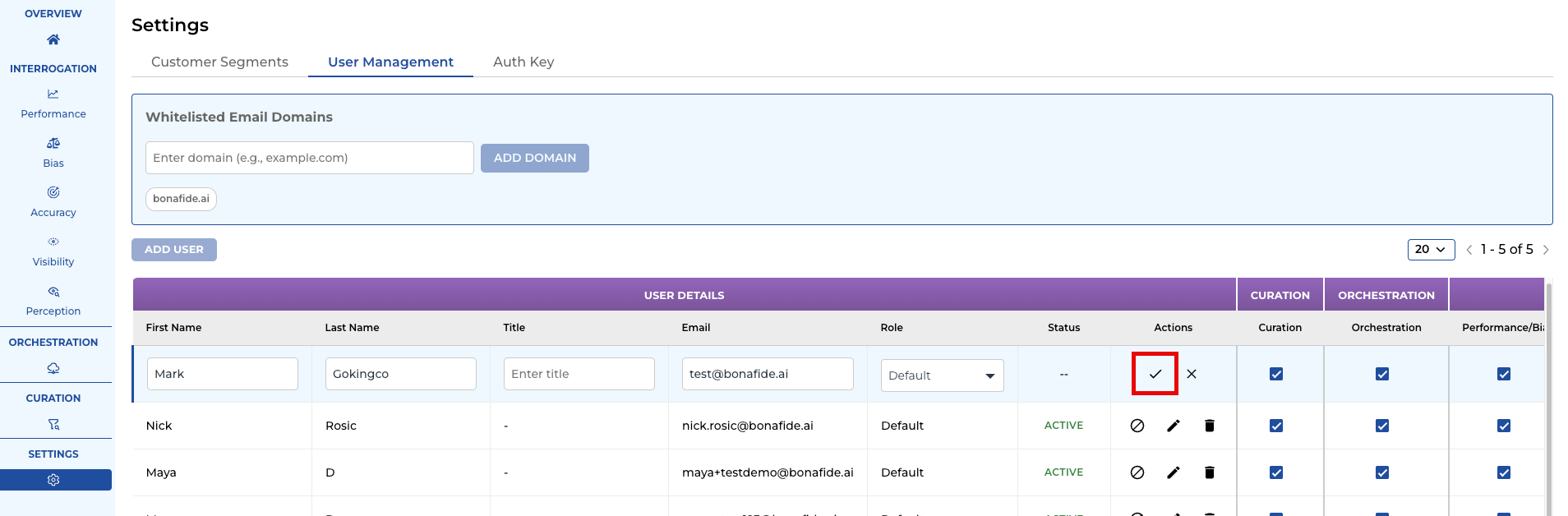
- Once details and permissions are set, click the Enter (check-mark) button to save.
- The system will automatically send an email invitation to the user, allowing them to log in and access the modules you have authorized.
Managing Existing Users
- Editing Permissions: You can return to the User Management dashboard at any time to toggle module access or change a user's role as their responsibilities evolve.
- Monitoring Progress: For users assigned as Delegates, you can track their completion progress through the dedicated reporting graphs in the Curator module.