
Overview
Bonafide's subdomain hosting feature lets you serve live, automatically updated FAQ content on a web address your Brand controls — something like context.yourbrand.com. Instead of manually downloading and uploading FAQ files that quickly go out of date, Bonafide handles the hosting entirely on our infrastructure. Your content stays current without anyone on your team needing to maintain it.
This article walks through exactly what setup involves, how the system works under the hood, and what your IT security team needs to know to evaluate and approve it.
TABLE OF CONTENTS
I. What Your IT Team Needs to Do
II. Step by Step Instructions
1. Initialize Orchestration
2. DNS Validation (Verification)
3. Content Pointing (Activation)
4. Final Verification
5. Link your website Home Page to the Subdomain
III. FAQs
I. What Your IT Team Needs to Do
There are two DNS (DOMAIN NAME SYSTEM) record additions required from your side. That's the full extent of your IT team's involvement — no code deployments, no server configuration, no ongoing maintenance.
A DNS record is simply an entry in your domain's settings that tells the internet where to find something. Your IT team adds these the same way they would when pointing a domain to any third-party service, like a marketing platform or a CDN.
Step 1 — Verify domain ownership (SSL certificate)
Before any content goes live, AWS needs to confirm that your Brand owns the subdomain. Your IT team adds one DNS record that acts as a verification code. It doesn't route any traffic — it just proves ownership.
Once this record is in place, Bonafide's system automatically requests and provisions a free SSL certificate (the padlock you see in a browser's address bar) from Amazon's certificate authority. This certificate is issued specifically for your subdomain and is globally trusted by all major browsers. This step typically takes up to one hour.
Step 2 — Point the subdomain to Bonafide's delivery network
Once the SSL certificate has been issued, your IT team adds a second DNS record pointing your chosen subdomain (e.g. context.yourbrand.com) to Bonafide's content delivery system. From this moment, the subdomain is live and will update automatically whenever your FAQ content changes in Bonafide.
Summary of IT involvement:
|
Step |
What IT Does |
Time Required |
|---|---|---|
|
1 |
Add 1 DNS record (SSL verification) |
~5 minutes |
|
2 |
Add 1 DNS record (traffic routing) |
~5 minutes |
|
Ongoing |
Nothing |
— |
How the System Works
Once setup is complete, here's how content gets from Bonafide to your subdomain:
- Content lives in Bonafide's secure cloud storage (Amazon S3) — encrypted, private, and completely inaccessible from the public internet directly.
- Amazon CloudFront acts as the delivery layer — it's a global content delivery network (CDN) that serves your FAQ content over HTTPS to anyone visiting your subdomain. This is the same infrastructure used by Netflix, Airbnb, and major financial institutions.
- When your FAQ content is updated in Bonafide, the system automatically pushes the new content and refreshes the delivery layer. Your subdomain reflects the latest content without any action from your team.
- Your Brand's systems are never in the data path. Bonafide's infrastructure handles everything behind your subdomain.
Security Overview for IT Teams
This section is written specifically for IT security reviewers evaluating this integration.
Access & Permissions
Bonafide does not need — and does not request — any access to your Brand's systems, servers, or DNS management console. Your IT team adds two DNS records independently. Bonafide has no visibility into your DNS settings and no ability to make changes on your behalf.
Bonafide's system operates within AWS under a tightly scoped permissions policy that limits it to managing only the resources it creates for this feature: its own storage buckets, its own content delivery distributions, and SSL certificates. It cannot access AWS resources outside of its own scope.
Encryption in Transit
All traffic between end users and your subdomain is encrypted using HTTPS. HTTP requests are automatically redirected to HTTPS — there is no way to access content over an unencrypted connection. We enforce TLS 1.2 as the minimum protocol version, which meets current PCI-DSS and industry security standards.
Encryption at Rest
FAQ content is stored in Amazon S3 with AES-256 encryption at rest — the same standard used by banks and government agencies.
Storage Access Controls
The S3 storage bucket has all public access blocked at the infrastructure level. The only entity that can read content from the bucket is Bonafide's own CloudFront distribution, enforced through AWS Origin Access Control (OAC). This is a hard infrastructure policy — even someone with knowledge of the bucket name cannot access it directly from the internet.
Your Brand's Dedicated Infrastructure
Every Brand on Bonafide's platform gets its own dedicated CloudFront distribution and its own dedicated SSL certificate. You do not share infrastructure with any other Bonafide customer. This means:
- A configuration issue affecting another customer has zero impact on your subdomain
- Your SSL certificate lifecycle is managed independently
- Content cache updates for another customer do not affect your content
Security Headers
The following security headers are applied automatically to every response served from your subdomain:
|
Header |
Purpose |
|---|---|
|
HSTS |
Forces browsers to always use HTTPS, even if a user types HTTP manually |
|
X-Frame-Options: DENY |
Prevents your page from being embedded in an iframe (blocks clickjacking attacks) |
|
X-Content-Type-Options: nosniff |
Prevents browsers from misinterpreting file types (protects against certain injection attacks) |
Certificate Spoofing Protection
Because your SSL certificate is issued by Amazon's trusted certificate authority and tied specifically to your subdomain, any attempt by a third party to impersonate your subdomain with a fraudulent certificate will fail browser validation. The HSTS header further ensures browsers remember to enforce HTTPS, adding protection against SSL downgrade attacks.
What Happens If Something Goes Wrong
We believe in being upfront about failure scenarios so your team can plan accordingly.
Setup fails mid-way
The provisioning process includes automatic retries (up to three attempts) if any step encounters an error. If all retries fail, the status is clearly flagged for Bonafide's team to investigate. Setup does not leave broken infrastructure behind — if it fails, it fails cleanly and can be restarted without manual cleanup. Your subdomain simply won't go live until the issue is resolved.
CloudFront outage (Amazon infrastructure)
In the unlikely event of a global Amazon CloudFront outage, your subdomain would be temporarily unreachable. This would be an AWS-wide infrastructure event — the kind that affects a significant portion of the internet simultaneously. CloudFront has historically maintained 99.9%+ availability. The current version of this feature does not include automatic failover to a backup delivery network; this is on our roadmap. In this scenario, Bonafide would communicate status through our normal support channels.
Content update pipeline issue
If Bonafide's content update system encounters an error, your subdomain would remain live and accessible, but the content would temporarily reflect the last successfully published version rather than the most current one. Our team monitors the pipeline and is alerted to failures. Your Brand's visitors would continue to see valid FAQ content — just not the most recent edits until the issue is resolved.
Turning off the feature
If your Brand decides to stop using subdomain hosting, Bonafide deletes the CloudFront distribution, the SSL certificate, and all associated hosted content. Your IT team removes the two DNS records. There is no lingering infrastructure on either side.
Setup Checklist for IT
Use this checklist when implementing the subdomain setup:
- Confirm the subdomain you want to use (e.g. context.yourbrand.com)
- Bonafide enables subdomain hosting in the Orchestration platform — you'll receive the two DNS record values
- Add DNS Record 1: SSL verification CNAME (provided by Bonafide)
- Wait for SSL certificate issuance confirmation from Bonafide (up to 1 hour)
- Add DNS Record 2: Traffic routing CNAME pointing subdomain to Bonafide's CloudFront address (provided by Bonafide)
- Bonafide confirms subdomain is live and active
- Verify by visiting your subdomain in a browser — confirm the padlock/HTTPS is present
II. Step-by-Step Instructions in Bonafide Platform
You need Admin access to the Bonafide Platform for your Brand. Contact support@bonafide.ai to get access.
1. Initialize Orchestration
- Log in to Bonafide and click the Orchestration icon on the left sidebar.
- Select the Subdomain method.
- Enter your desired subdomain name (e.g., context, faq, or llm).
- Select your desired content formats (FAQ HTML, Sitemap, LLM.txt, etc.).
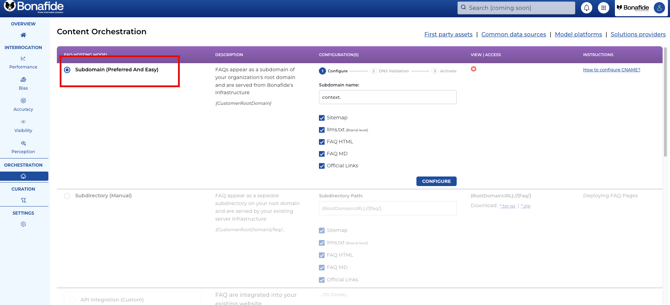
2. Phase 1: DNS Validation (Verification)
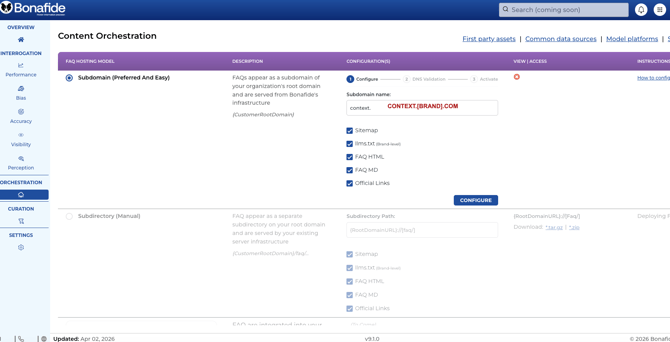
TIP: We recommend the subdomain to be CONTEXT.[YOUR BRAND DOMAIN].COM
Before Bonafide can host content on your domain, it must verify ownership.
Click Configure.
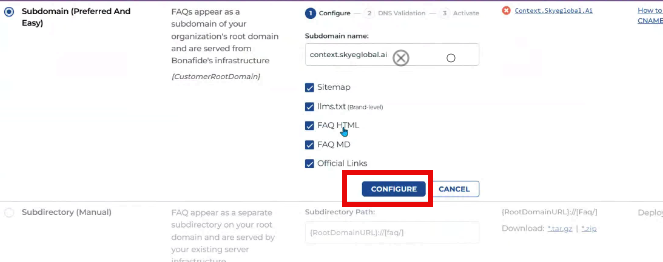
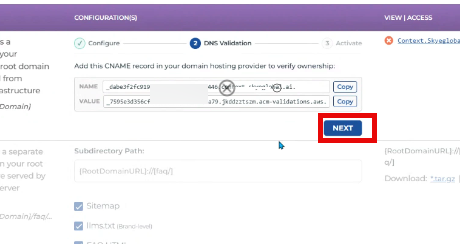
The system will generate a validation CNAME Name and Value.
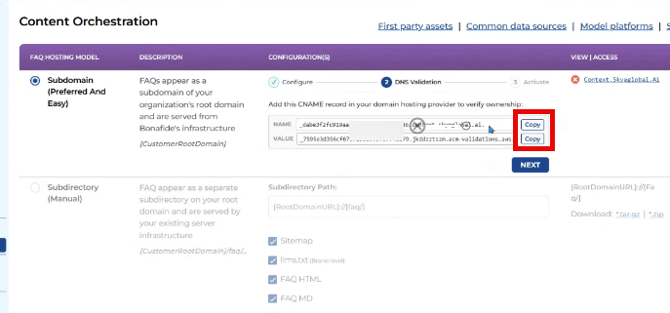
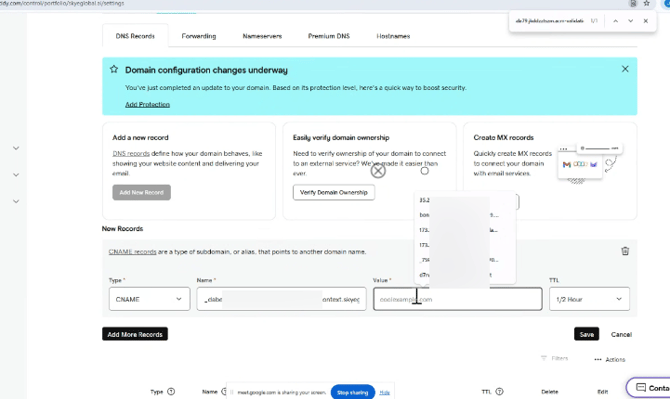
DNS Update: Log in to your DNS provider and add this CNAME record.
You have 1 HOUR to complete the DNS Update or the verification process will expire.
Godaddy Example Only:
Return to Bonafide and click Next.
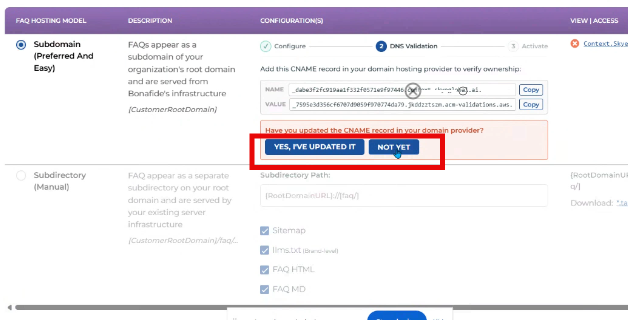
Select "Yes, I have updated it" to trigger the DNS Validation Check.
3. Phase 2: Content Pointing (Activation)
Once validation is successful, you must point the subdomain to the actual hosting infrastructure.
The Bonafide UI will refresh and provide a new CNAME Value (this will be a CloudFront URL).
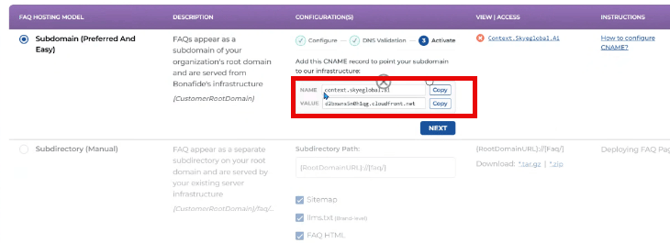
DNS Update: Go back to your DNS provider. Find the CNAME record you created in the previous step and update the Value/Target to the new CloudFront URL provided.
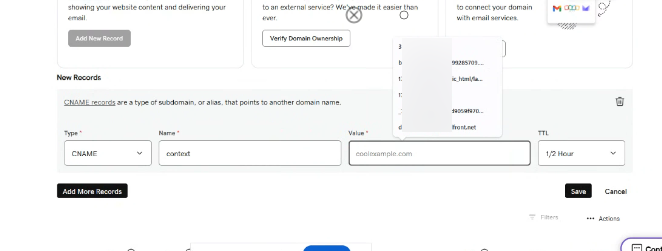
Note: Do not use an IP address; the target must be a hostname.
Return to Bonafide and click Next.
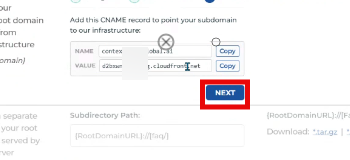
Select "Yes, I have updated it" to begin the final Activation.
NOTE: This may take some time to activate
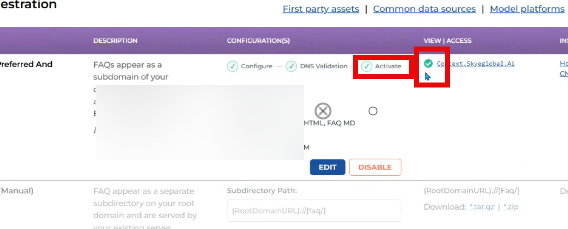
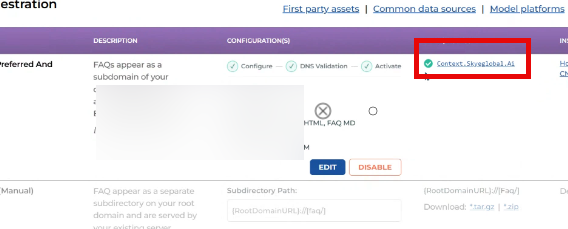
4. Final Verification
- The system will verify the new routing.
- Once complete, a green checkmark will appear next to your subdomain URL.
- The link is now active and will resolve to your Bonafide-hosted FAQ content. (test by clicking the url)
5. Linking Your Homepage to Your AI Context
As part of your Bonafide setup, you can improve the crawlability and orchestration of context by simply link to your context from your hotel website's homepage or other pages. At present, this is the recommended best practice. This is a one-line change to your footer — but it plays an important role in how accurately AI platforms represent your brand.
What The Backlink Does?
AI crawlers — the automated programs that gather information for AI platforms — discover content by following links from trusted websites. When your main website links to your context subdomain, it sends two important signals:
- Your brand owns and endorses the context subdomain
- The subdomain is a legitimate, authorized source of brand information
This is the same principle behind linking to your sitemap or privacy policy — it establishes that the page belongs to you and is safe to crawl.
Without this link, AI crawlers may not find the page at all — or may deprioritize it when indexing your brand's digital footprint.
|
Purpose |
Why It Matters |
|
Crawl authority |
AI crawlers follow links from trusted root domains. A link from yourdomain.com → context.yourdomain.com establishes the crawl path. |
|
Trust chain |
Signals that your brand owns and endorses the context subdomain as an authoritative source. |
|
Discoverability |
Without this link, AI crawlers may not prioritize or even reach the subdomain during indexing. |
|
AI accuracy |
Ensures the structured brand data Bonafide maintains is actually read and used by AI platforms. |
Creating the Backlink
Add a single hyperlink in the footer of your homepage. Here are the details:
- Locate your homepage footer template.
- Add a link alongside your existing footer links (e.g., Privacy Policy, Terms of Use, Sitemap).
- Point the link to: https://context.[yourdomain].com
- The link does not need to be prominently displayed — it just needs to be present in the page HTML.
Suggested Link Text
Use any of the following — or whatever fits your footer style:
- Context for LLMs
- AI Context
- For LLMs
- LLMs
HTML Snippet for Your Web Team
Your developer can copy and paste this directly into your footer template, replacing [your-domain] with the domain for your context and [path-to-context] with the path to the context root. For subdomains, this usually be https://context.acme.com/
<a href="https://[your-domain]/[path-to-context]">Context for LLMs</a>
Important: Do not add rel="nofollow" to this link. That attribute instructs crawlers not to follow the link, which would defeat the purpose entirely.

Frequently Asked Questions
Will this link affect my website's design or user experience?
No. The link can be styled to match your existing footer and does not need to be prominent. Most visitors will not notice it. It is primarily there for AI and search crawlers.
Does this need to be on every page, or just the homepage?
The homepage is the most important placement, as it carries the highest domain authority. If your footer is sitewide (which it typically is), having the link appear across all pages is perfectly fine and may provide additional benefit.
What if we use a tag manager or CMS that limits footer edits?
Most CMS platforms (WordPress, Squarespace, Wix, custom builds) allow footer edits through a global template or theme settings. If you run into limitations, reach out to your Bonafide account manager and we can help coordinate with your web team directly.
How will I know if the link is working?
Once the link is live, Bonafide will confirm that the crawl path is established. You can also verify it by visiting your homepage, right-clicking, selecting "View Page Source," and searching for "context" to confirm the link is present in the HTML.
Will Google crawl the context subdomain and show it in search results?
Yes — because the link does not include rel="nofollow", Googlebot will crawl and index the context subdomain. It may appear in Google Search results. However, this is a feature, not a risk: it signals to Google that your brand has a rich, authoritative web presence. The context subdomain is structured brand reference data, not a booking or landing page, so it is unlikely to appear for commercial search queries like "book hotel in Miami."
Will the context subdomain compete with our organic search rankings?
No. The context subdomain is not optimized for transactional or commercial search queries — it contains structured brand data (descriptions, amenities, key facts) rather than booking-focused content. Google understands the difference between a reference page and a commercial landing page. If anything, having additional indexed, legitimate content under your root domain can strengthen your main site's overall domain authority rather than compete with it.
In the rare case that the context subdomain appears in brand-name search results (e.g., someone searching your hotel's exact name), it would likely show as a secondary sitelink beneath your main listing — a positive signal of a strong brand presence, not a displacement of your primary result.
Will this affect our Google Ads or paid search performance?
No. Paid search (Google Ads) is entirely separate from organic indexing. Adding an indexed subdomain has no effect on your Quality Scores, ad rank, cost-per-click, or campaign performance in any way. Your paid search activity is unaffected.
The context subdomain is infrastructure for AI platforms — not marketing real estate. Think of it more like your sitemap or robots.txt: it supports how your brand is understood and represented, without competing for visibility in search or advertising.
FAQ once the Subdomain is Established:
Does Bonafide have access to our DNS or domain settings?
No. Bonafide never accesses, manages, or has visibility into your DNS settings. Your IT team adds two records independently through your own DNS management console.
Does our IT team need to do anything after setup?
No. Once the two DNS records are in place and the subdomain is active, there is no ongoing maintenance required from your side. Content updates happen automatically.
Can we choose our own subdomain name?
Yes. You choose the subdomain during the setup process in Bonafide's platform (e.g. context.yourbrand.com, etc.). It must be a subdomain of a domain your Brand already owns.
Is the content publicly accessible (i.e. indexed by search engines)?
Yes — the FAQ content served on your subdomain is publicly accessible over the web by design, and can be indexed by search engines. The content itself is your FAQ data. The underlying storage infrastructure is private; public access is only possible through the subdomain.
What if our IT security team has a vendor security questionnaire?
We're happy to complete it. Please reach out to your Bonafide account representative and we'll respond to any standard security questionnaire or third-party vendor review your Brand requires.
Can we run a technical review call with Bonafide's engineering team?
Yes. If your IT security team would find it helpful to speak directly with Bonafide's technical team, we can arrange that. Contact your account representative to schedule.
What percentage of my brand's content is currently included in Bonafide's content collection or knowledge graph? Within the context layer/knowledge graph, Bonafide incorporates all that your brand has to offer and makes that available for orchestrations. This does not mean that we are orchestrating all of your brand's content. Instead, we focus on orchestrating the most important information. This is a function of our Q&A pairs.
Is there a way to see which of my brand's URLs are currently included in Bonafide's content collection and which are not? BonafideBot, our context crawler, crawls all pages linked in the sitemap and any pages linked to it, excluding anything that is explicitly excluded. We also do not collect past events. Further, the location where we found the Official Response from the 'System of Record' is noted as a URL in the "Official Links" cell.
Is Bonafide generating answers solely from the content represented at my brand's context endpoint, or does it also continuously crawl and utilize the broader brand site? We do not generate answers from your brand's context endpoint — this is the distribution endpoint for LLM crawlers. We regularly (but not "continuously") crawl your brand's site. We can crawl it more frequently if needed.
How frequently is content refreshed? Currently, we are running our Crawl quarterly. We are examining what the ideal frequency is as it relates to information changes.
Are there any updates on custom queries and reporting features? These are in final review and should be released soon. Full disclosure: the functionality is working — we are discussing improvements to certain behaviors and are internally debating what to address before the initial release versus what to ship as individual patches afterward.
Will this link affect my website's design or user experience?
No. The link can be styled to match your existing footer and does not need to be prominent. Most visitors will not notice it. It is primarily there for AI and search crawlers.
Does this need to be on every page, or just the homepage?
The homepage is the most important placement, as it carries the highest domain authority. If your footer is sitewide (which it typically is), having the link appear across all pages is perfectly fine and may provide additional benefit.
What if we use a tag manager or CMS that limits footer edits?
Most CMS platforms (WordPress, Squarespace, Wix, custom builds) allow footer edits through a global template or theme settings. If you run into limitations, reach out to your Bonafide account manager and we can help coordinate with your web team directly.
How will I know if the link is working?
Once the link is live, Bonafide will confirm that the crawl path is established. You can also verify it by visiting your homepage, right-clicking, selecting "View Page Source," and searching for "context" to confirm the link is present in the HTML.
Will Google crawl the context subdomain and show it in search results?
Yes — because the link does not include rel="nofollow", Googlebot will crawl and index the context subdomain. It may appear in Google Search results. However, this is a feature, not a risk: it signals to Google that your brand has a rich, authoritative web presence. The context subdomain is structured brand reference data, not a booking or landing page, so it is unlikely to appear for commercial search queries like "book hotel in Miami."
Will the context subdomain compete with our organic search rankings?
No. The context subdomain is not optimized for transactional or commercial search queries — it contains structured brand data (descriptions, amenities, key facts) rather than booking-focused content. Google understands the difference between a reference page and a commercial landing page. If anything, having additional indexed, legitimate content under your root domain can strengthen your main site's overall domain authority rather than compete with it.
In the rare case that the context subdomain appears in brand-name search results (e.g., someone searching your hotel's exact name), it would likely show as a secondary sitelink beneath your main listing — a positive signal of a strong brand presence, not a displacement of your primary result.
Will this affect our Google Ads or paid search performance?
No. Paid search (Google Ads) is entirely separate from organic indexing. Adding an indexed subdomain has no effect on your Quality Scores, ad rank, cost-per-click, or campaign performance in any way. Your paid search activity is unaffected.
The context subdomain is infrastructure for AI platforms — not marketing real estate. Think of it like your sitemap or robots.txt: it supports how your brand is understood and represented, without competing for visibility in search or advertising.