The Bonafide API Key feature allows users to connect external applications or an MCP server directly to the Bonafide platform to pull data without needing to log into the web application. Through this feature, users can generate keys to access various data endpoints, including Curation, Orchestration, Perception, Performance, Account, and Accuracy data.
Here is a step-by-step guide to train users on how to create, use, and manage their API authentication keys.
Step 1: Navigate to the API Key Settings
To find the API Key feature, navigate to the Settings module in the Bonafide platform. From there, select the very last tab labeled Auth key.
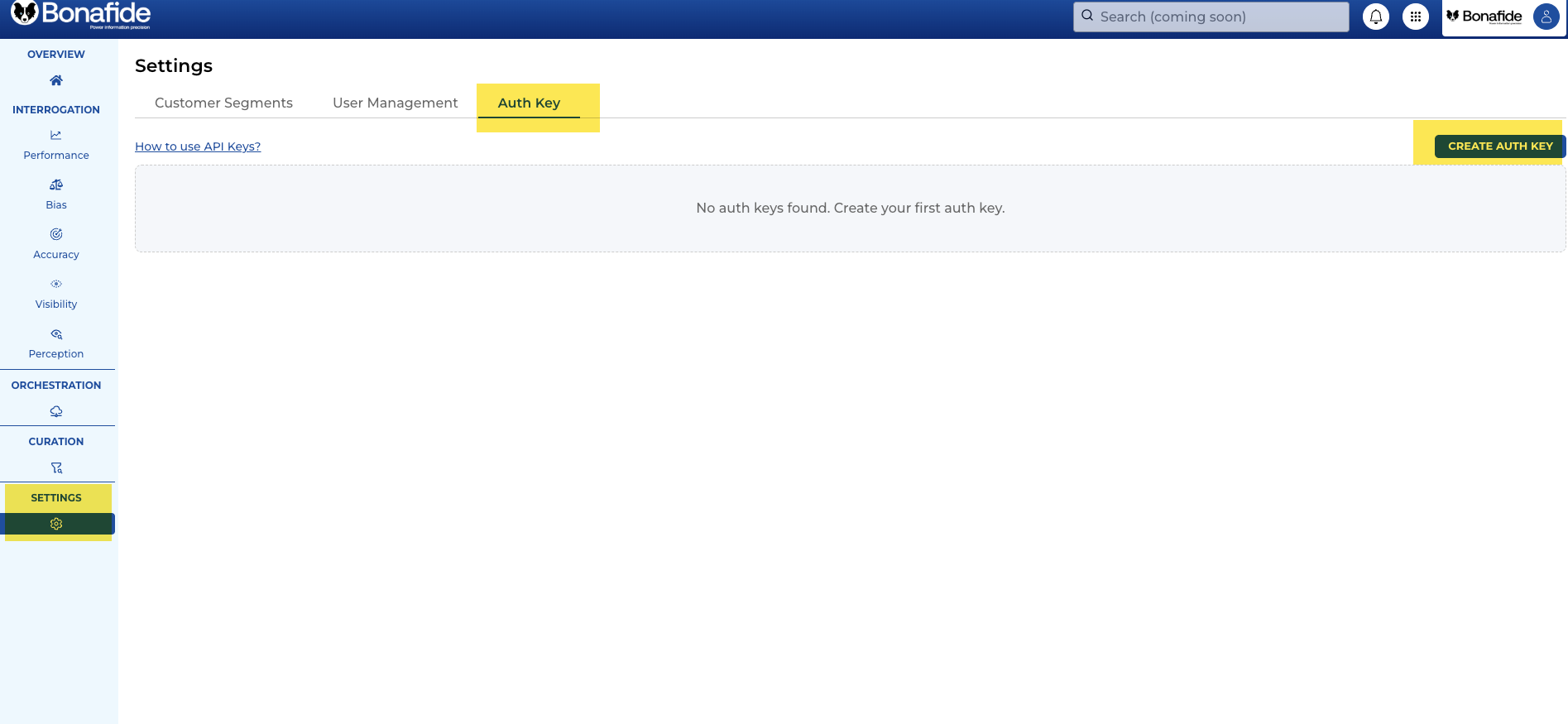
Step 2: Create a New Authentication Key
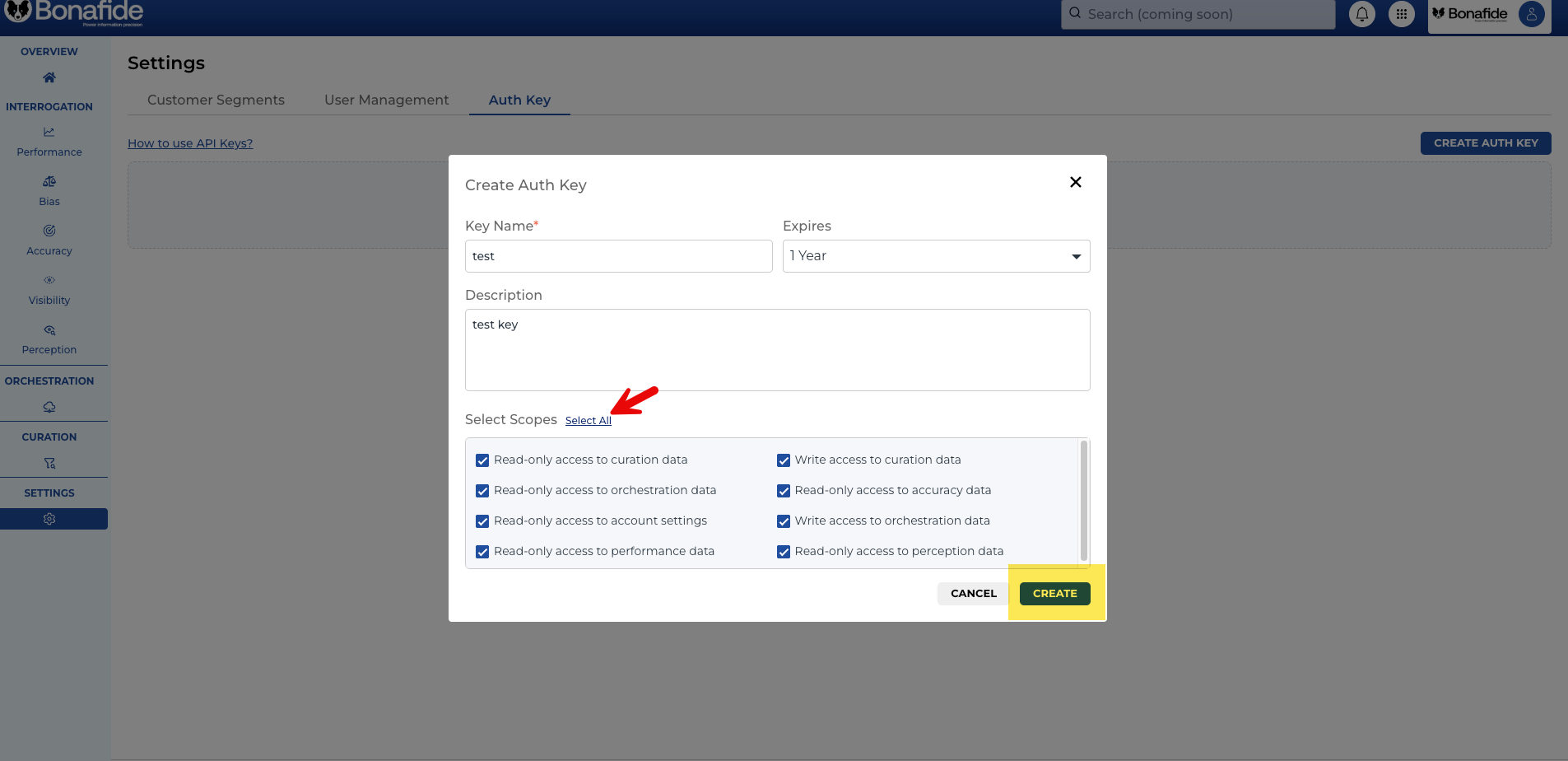
In the Auth key tab, users can generate a new key to grant external access to their data.
- Initiate the creation of a new key.
- Select the specific brand or environment you want to pull data for (e.g., Washington DC).
- Set an expiration timeframe for the key, such as one year.
- Select the specific APIs you want this key to have read-only access to (for example, you can select only Curation and Orchestration data).
- Click Create.
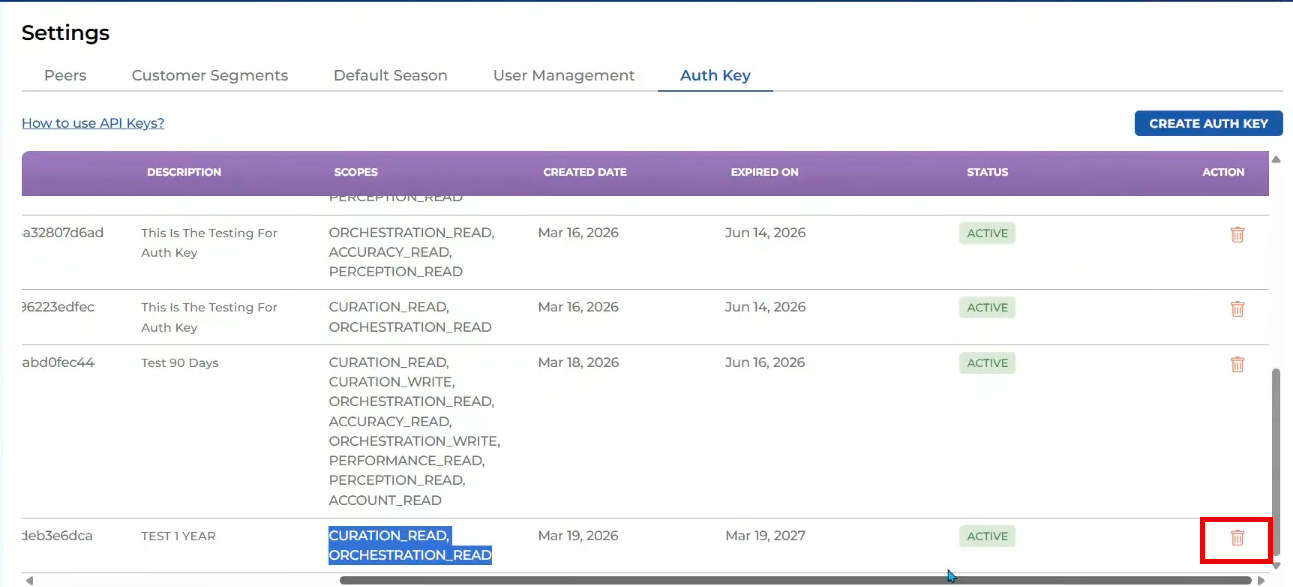
Important Note on Limits: The system currently enforces a limit of 10 active keys per account. If a user already has 10 active keys, they will not be permitted to create a new one until they revoke an existing key.
Step 3: Securely Copy the Client Secret
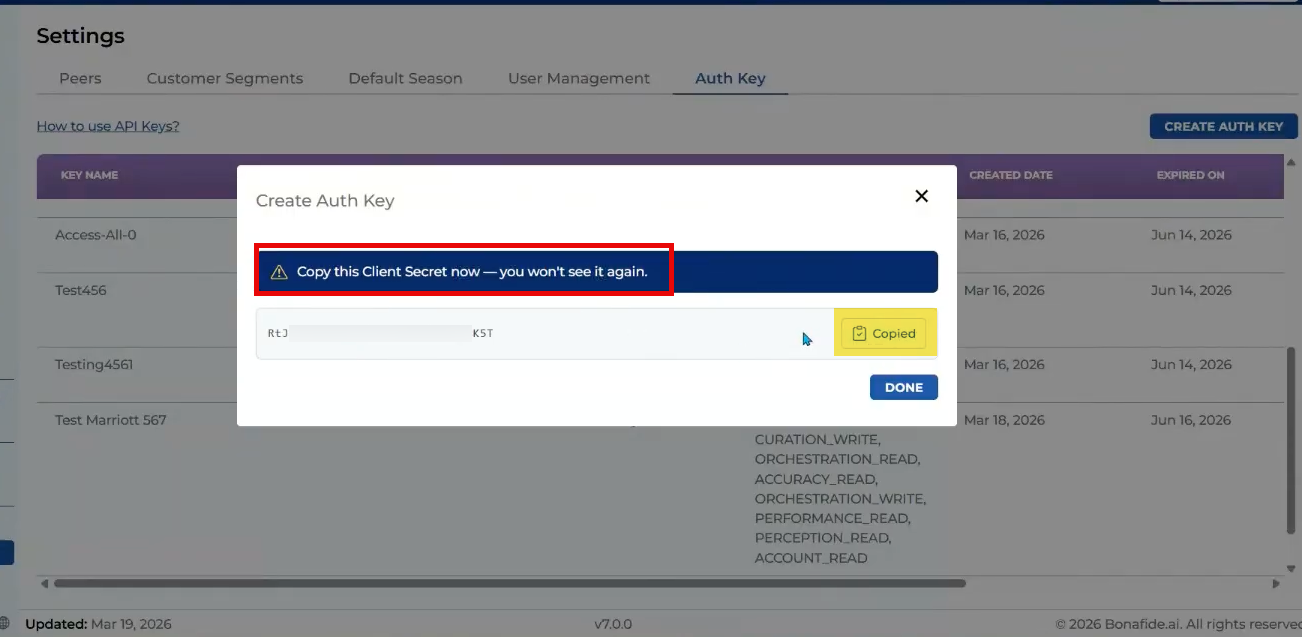
Immediately after clicking "Create," a screen will display the newly generated authentication key. This is a critical step: The screen will display a warning noting, "copy this client secret now you won't see it again".
Users must copy this secret key immediately by either clicking the provided Copy button or by double-clicking the text and using Ctrl+C. Once the key is safely copied and stored, the user can close the window using the "Done" or "X" button.
Step 4: Locate Your Client ID
Once the window is closed, the user will see a new record created in their Auth key dashboard. This dashboard record provides the Client ID associated with the secret key they just generated. The dashboard also displays the creation date, the expiration date, the key's status (Active), and the specific APIs the key has access to.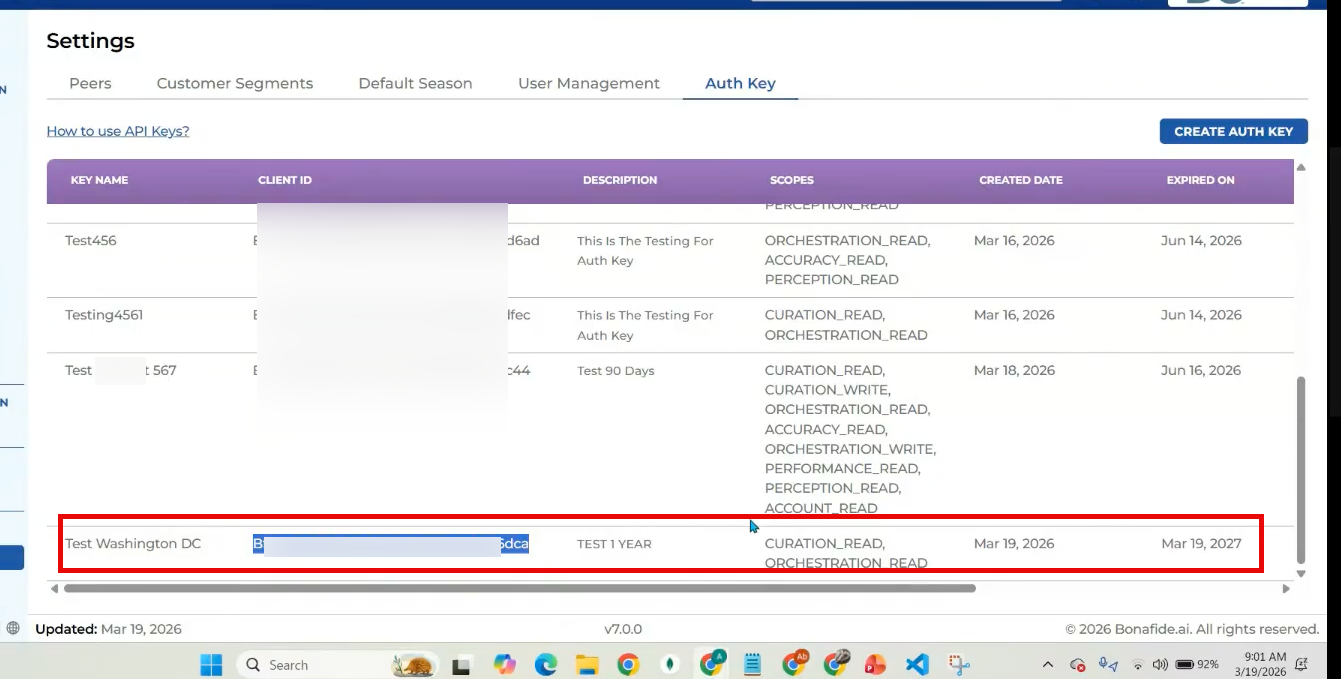
Step 5: Generating a Token and Calling the API
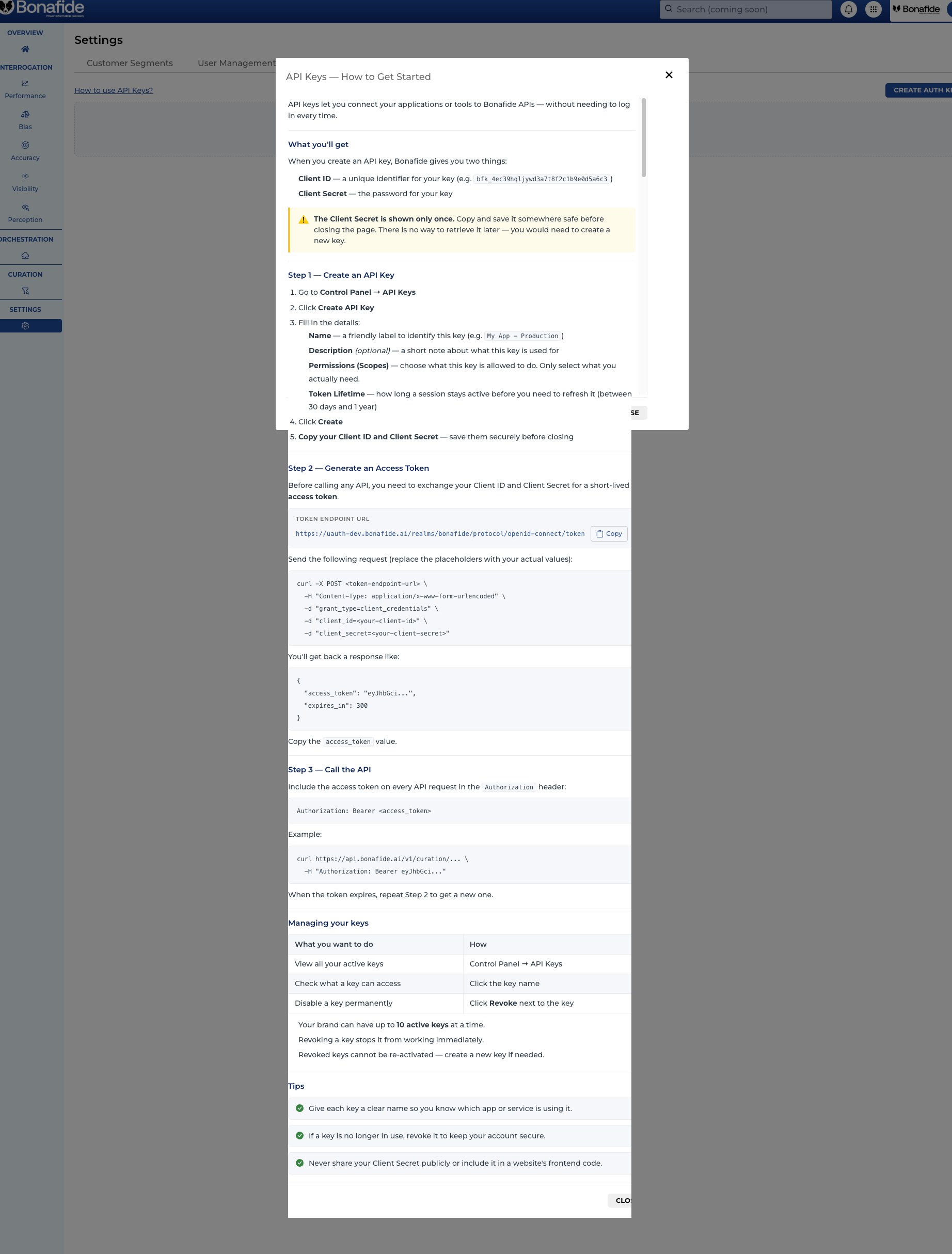
To actually start pulling data using the Bonafide API endpoints, the user will need both the Client ID (found on the dashboard) and the Authentication Key/Client Secret (copied in Step 3).
- These two pieces of information are used together to generate a secure Token.
- The API endpoint can only be successfully called once this token has been generated and properly set up in the backend integration.
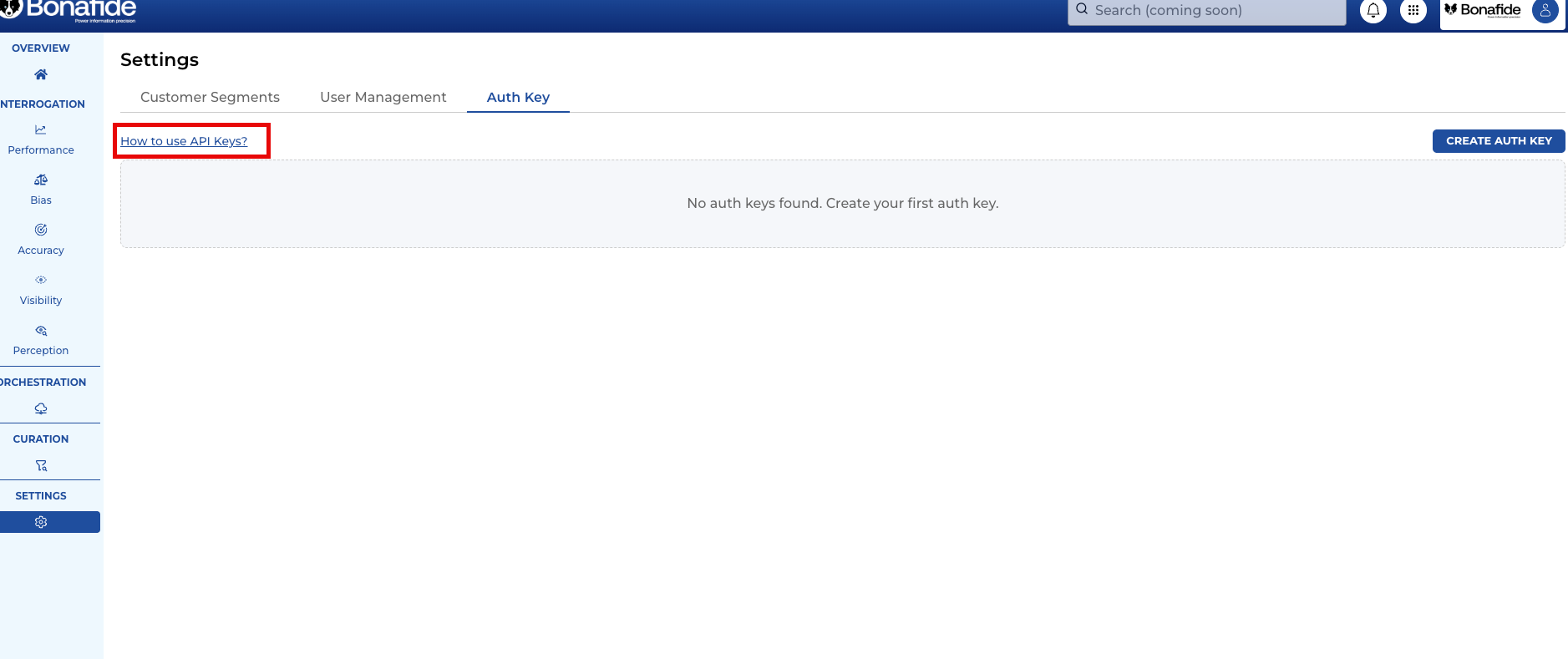
- Users can find a detailed, step-by-step technical guide on this token generation process by clicking the "how to use API keys" URL link provided within the module.
Step 6: Revoking an API Key
If a user needs to delete a key or free up space to stay under the 10-key limit, they can easily revoke access. Simply navigate to the Auth key dashboard, locate the specific key record, and click the delete icon to instantly revoke it.