
In the Bonafide platform, "Peers" (also known as competitor sets or compsets) are the rival properties or destinations used to benchmark your brand's AI visibility. Managing your peer list ensures that your scores in the Performance, Bias, and Perception modules accurately reflect how you stack up against your true competitors.
Here is a step-by-step guide on how to update, edit, add, or remove peers in the platform.
Step 1: Navigate to the Peers Dashboard
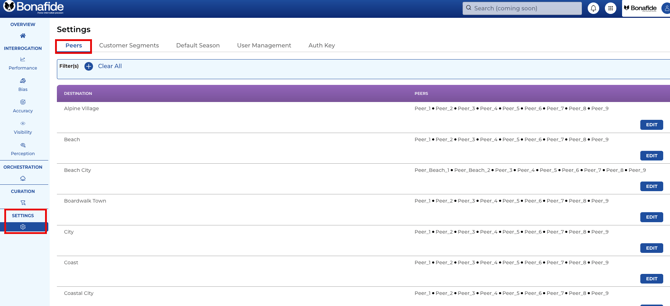
To access your competitor sets, log into the Bonafide platform and navigate to the Settings module in the main menu. From the Settings menu, select the Peers tab.
Here, you will see a complete list of your properties (or destinations) on the left, with their corresponding peer sets displayed on the right side of the screen.
Step 2: Edit Your Peer Set
- Locate the specific property or destination you want to update.
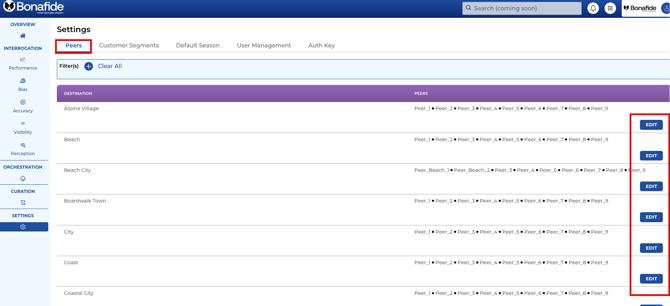
- Click the Edit button next to that property.
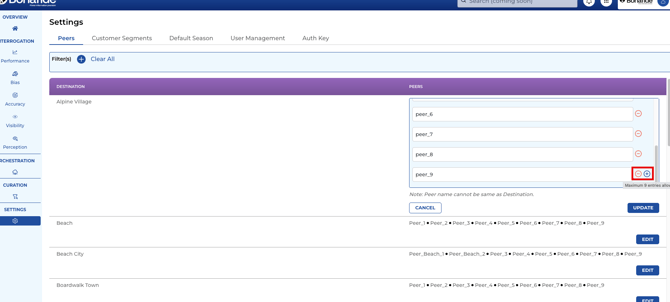
- To Add or Replace: You can type in the names of new competitors to add them to your list, or replace existing ones with new rivals.
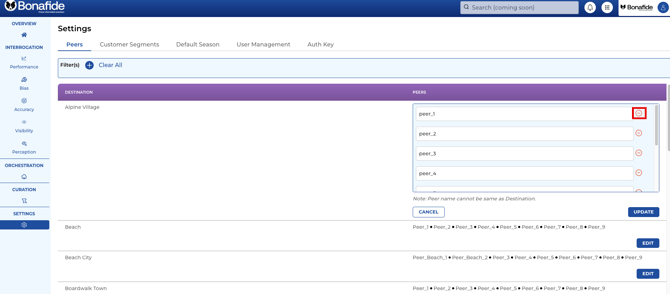
- To Remove: You can easily delete any peers that are no longer relevant to your market strategy.
Note on Limits: While Bonafide typically targets around 9 peers during your initial onboarding, there is no minimum and a maximum of 20 peers restriction in the platform. You can have zero peers, or scale up to any number you need.
Step 3: Save and Wait for the Update
Once you have finished editing your peer list and saved your changes, the system goes to work immediately.
Changing your peers triggers a new set of interrogations in the background, where Bonafide asks the Large Language Models (LLMs) how you compare against this newly defined list of competitors.
Timing and Impact:
- You do not have to wait until the next month to see your new scores. The system processes these changes quickly, typically taking only 10 to 15 minutes (and up to 20 minutes maximum) to complete the data refresh.
Once the background process (the DAG) is complete, your newly updated metrics will automatically populate and reflect across the Performance, Bias, and Perception modules.