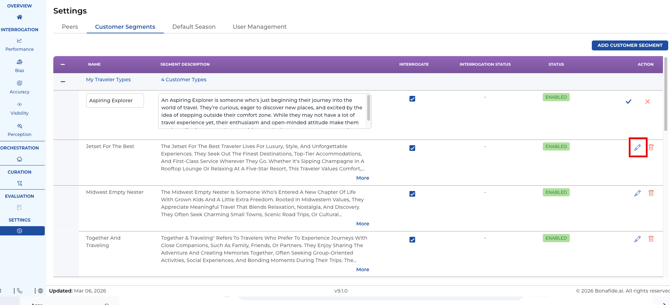
In the Bonafide platform, tracking how your brand performs across specific demographics is crucial for understanding your AI visibility. Follow these step-by-step instructions to effectively add, edit, and control the data flow for your custom segments.
Step 1: Navigate to the Customer Segments Dashboard
- Log into the Bonafide platform and navigate to the Customer Segments module.
- You will see the data organized into three distinct sections: My traveler types, General traveler, and Standard traveler types.
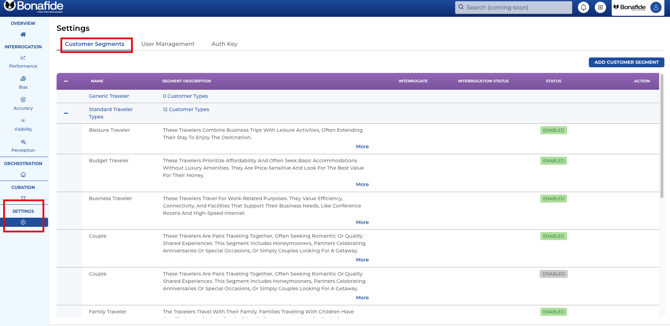
Important Note: The editable section is strictly limited to My traveler types. This is your workspace where you can add new custom demographics. You cannot edit or delete the default segments found under the General and Standard traveler types sections.
Step 2: Add a New Custom Segment
When you add a new custom traveler type to your list, its visibility on your dashboards depends entirely on the Interrogate checkbox.
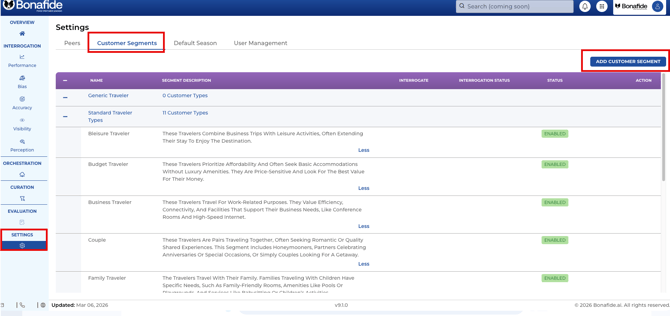
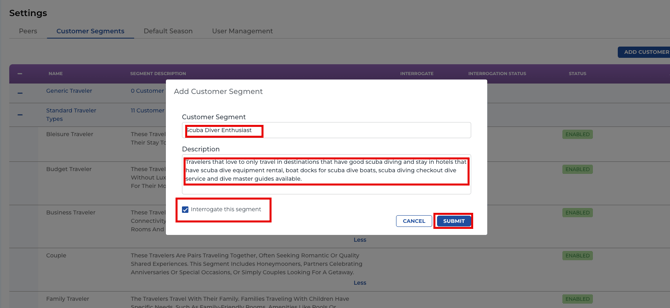
- Create your new segment (e.g., "First-Time Traveler").
- To actively track the segment: Check the "Interrogate" box before you submit. The system will instantly trigger a new background interrogation and flag the status as "Scheduled". This process takes about 10 to 15 minutes to finish. Once the status updates to "Completed," your new segment will automatically populate in the global filter dropdowns, graphs, and detail pages of your Performance and Bias modules.
- To save without tracking: Leave the "Interrogate" box unchecked. The system creates the record but skips the data pull. Because it was not interrogated, this segment will remain completely hidden from your Performance and Bias modules.
Step 3: Pause or Resume Active Interrogations
You have complete control over which of your custom segments are actively interrogated during Bonafide's monthly data runs.
- To Pause Tracking: Locate an active segment and uncheck the "Interrogate" box. The platform will skip this segment in all future runs. However, your historical data is preserved; the last updated data pull will continue to display on your detail pages, graphs, and dropdown filters.
- To Resume Tracking: To start tracking a paused segment again, check the "Interrogate" box. This will instantly schedule a fresh set of interrogations to update your data.
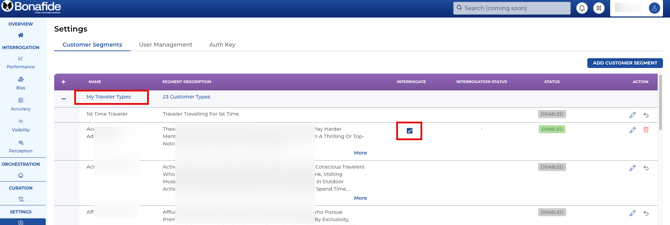
Step 4: Disable or Delete a Segment
If a custom segment is no longer relevant to your marketing strategy and you want to completely remove its data from your platform calculations, you can disable it.
- Locate the segment in the "My traveler types" list and click the Delete / Disable action button.
- This performs a "soft delete" in the system, changing the segment's status from "Enabled" to "Disabled".
- The segment's data will immediately be wiped from your global filters, detail pages, and graphs in both the Performance and Bias modules.
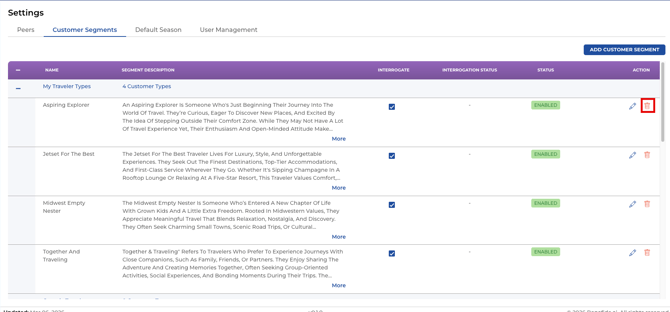
Step 5: Re-Enable a Disabled Segment
If you change your mind and want to bring a disabled segment back, you can easily restore it.
- Locate the disabled segment and click the option to re-enable it.
- When you re-enable a segment, the platform will automatically trigger a brand new interrogation to gather fresh data.
- The segment will temporarily show a "Pending interrogation" status and be grayed out in your dropdown menus until the data run finishes. Once completed (usually within a minute or two), the segment will reappear across all your module graphs and detail pages